The quick answer
Go to Setup > Accounting > Accounting Preferences, stay on the General subtab, and change Allow Transaction Date Outside of Posting Period from Disallow to Warn. Click Save. After that, saving a bill whose Date is outside its Posting Period shows a warning instead of stopping the save. Click OK to continue saving or Cancel to go back to the bill. Allow is a separate value that suppresses the mismatch warning. It is an account-level preference, so it applies to every user.
The screenshots show sample data. Person, company, vendor and amount values are fictional. Use your own records and values when following the steps.
Before you start
A transaction has a Date and a Posting Period, and NetSuite lets you pick them separately. This preference decides what happens when they do not match. In this example the bill is dated 10/28/2026 and posted to Nov 2026, which is a later period than the date.
You need accounting periods turned on with Oct 2026 and Nov 2026 open and available to your role, and a role that can change Accounting Preferences (the Administrator role can) and enter bills. Use an expense-only vendor bill that does not go through an approval process. A bill with item lines can be affected by the inventory preferences as well, and approval routing can change when the posting period is assigned, so test those separately.
The preference is account-level, so it applies to every user. It does not correct bills whose date and posting period already differ. Write down the current value before you change it. In a shared account, set it back after the test unless your accounting owner has chosen Warn.
Menu paths below are the ones in the account used for this example. If a page is not where it says, search for its name in global search.
01. Try to save the bill
Open Transactions > Payables > Enter Bills. Choose the vendor, Maple Street Printing, and enter the reference number. The Date is 10/28/2026, which is in the Oct 2026 period.
Change Posting Period to Nov 2026. The date and the period no longer match.
Add one expense line for 1,840.00 on 6240 Printing Expense, then click Save. While the preference is Disallow, NetSuite shows an alert that the transaction date is not within the date range of your accounting period. The bill is not saved and the form stays open. Click OK to close the alert.
The exact wording can differ by transaction type and release. A closed or locked period, an inventory preference or approval routing can also stop a save, so read what your account shows before you change a preference.
02. Find the preference
Go to Setup > Accounting > Accounting Preferences. It is listed under Preferences. Stay on the General subtab and find Allow Transaction Date Outside of Posting Period in the General Ledger section.
It is set to Disallow, which is why the save was blocked. In the account used for this example, Default Posting Period When Transaction Date in Closed Period and Allow Inventory Transactions Dated Outside the Posting Period are greyed out while Disallow is selected. Field availability can depend on your account's features and configuration.
03. Choose Warn
Open the list. It has three values. Disallow rejects the save. Warn shows a warning and lets the user continue. Allow saves without a date and period mismatch warning. These values control only the date and period mismatch check. They do not open a closed period, make a locked period available to a role without the permission, or bypass approvals, inventory costing rules, scripts or other validation.
Choose Warn. In this account, Default Posting Period When Transaction Date in Closed Period became editable and so did the inventory setting. Check what your account shows. Leave both as they are, since each is a separate decision and the inventory settings are not needed for an expense-only bill. Click Save. NetSuite returns to the Setup Manager.
If you turn on Enable Accounting Period Window later, NetSuite sets this preference back to Disallow. You can change it again afterwards, but a looser setting weakens the control that the period window is meant to give you.
04. Save the bill again
Open Transactions > Payables > Enter Bills again and enter the same bill: Maple Street Printing, Date 10/28/2026, Posting Period Nov 2026, one expense line of 1,840.00 on 6240 Printing Expense. Click Save.
This time NetSuite shows a warning about the transaction date instead of blocking the save. Click OK to continue. Cancel returns you to the form to change the date or the period.
05. Check the saved bill
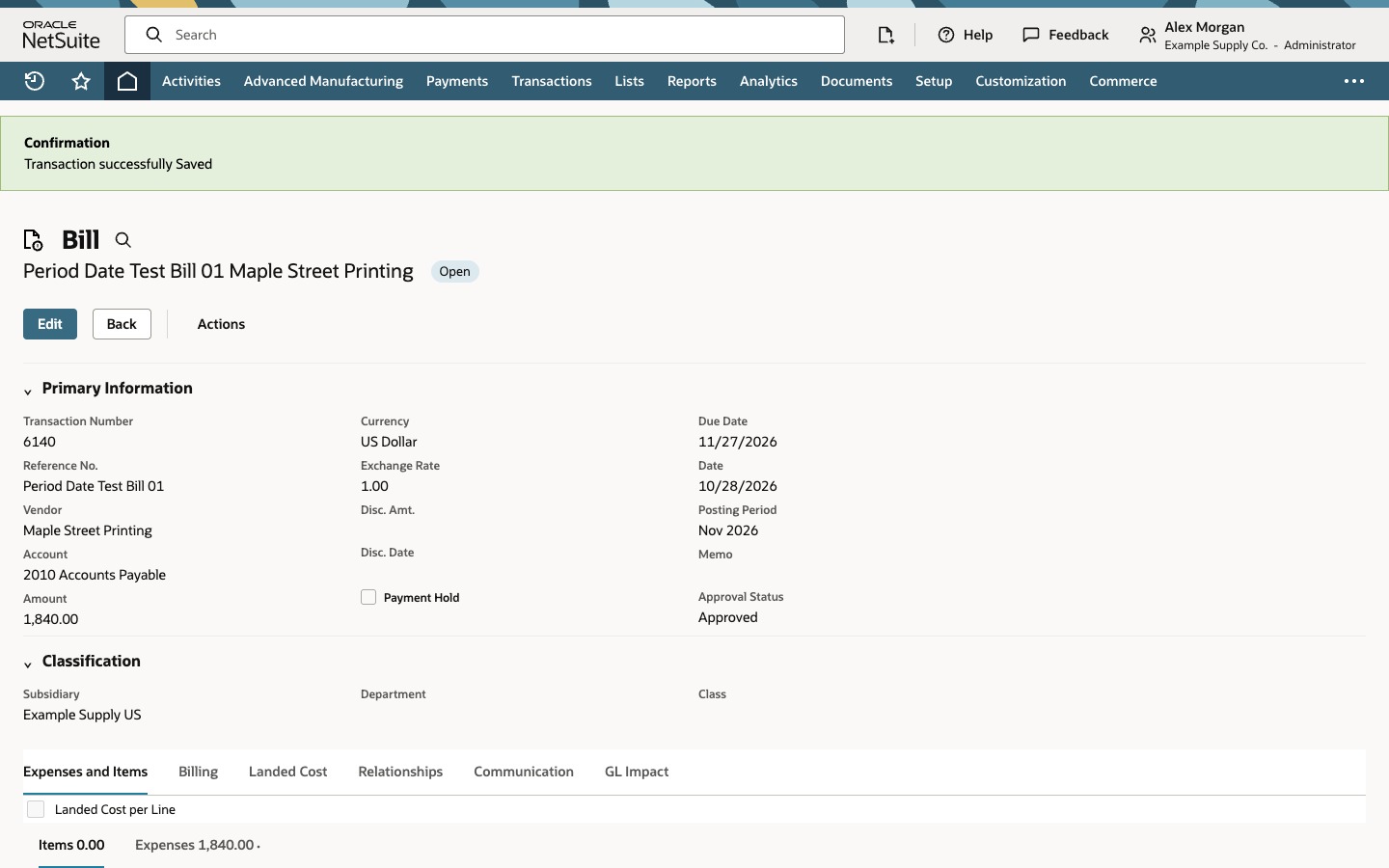
The bill saves and opens in view mode with the Transaction successfully Saved confirmation. Date is still 10/28/2026 and Posting Period is Nov 2026.
On a simple expense-only bill, the posting period you picked generally sets the period of the accounting entries, and the date stays as entered. Reports can therefore show the same bill differently. Whether a report goes by posting period or by date depends on the report and on your personal Report by Period preference, and not every report honors that preference. If your close depends on reports, compare ones run with the same setting, subsidiary and cutoff.
Check the result
- Under Disallow, saving a bill dated 10/28/2026 in Nov 2026 shows an alert and nothing saves.
- Accounting Preferences shows Allow Transaction Date Outside of Posting Period set to Disallow.
- After you choose Warn and save, the same bill shows a warning with OK and Cancel.
- OK saves the bill with Date 10/28/2026 and Posting Period Nov 2026.
Common questions
What does Allow Transaction Date Outside of Posting Period do?
It controls what happens on save when a transaction's Date is outside the date range of its Posting Period. Disallow blocks the save. Warn shows a warning and lets the user confirm or cancel. Allow saves without that warning. It does not open closed periods or override other validation.
Why does NetSuite say the transaction date is not within my accounting period?
Often the preference is set to Disallow and the date and posting period do not match. Check the transaction date, the selected posting period, the period's status, your role's access to it and the preference, in that order. Other causes are a closed or locked posting period, an inventory preference, a user without permission to post to that period, approval routing, or a script. The message alone does not tell you which one applies, and changing this one preference will not fix every transaction date error.
How do I let users post a bill dated in one month to a different posting period?
Set Allow Transaction Date Outside of Posting Period to Warn if users should confirm each time, or Allow if they should not be asked. Make sure the posting period is open and available to the role. Test bills with item lines, approval routing and scripts separately. Posting a bill into another period is an accounting-policy decision and can affect your period-close reconciliation.
What is the difference between Disallow, Warn and Allow?
Disallow rejects a date and period mismatch, Warn asks the user to confirm it, and Allow accepts it without a mismatch warning. These values only control that mismatch. Closed-period rules, locked-period permissions, inventory costing controls, approvals and custom validation still apply.
Does enabling the accounting period window change this preference?
Yes. Turning on Enable Accounting Period Window sets Allow Transaction Date Outside of Posting Period to Disallow. You can change it afterwards, but a looser value weakens the date and period control. The window also keeps a minimum number of current and future periods unlocked, which is separate from period close.