The quick answer
If the reminder is available to your role, open the menu on the Reminders portlet on Home and choose Set Up. Type expir in Search, click Lots Nearing Expiration and click Save. The reminder shows a count on Home. Click it to open Lots Nearing Expiration: Results, a list of lots whose expiration date falls from today through 14 days from today in the example account. Confirm the window in the Filters section before you rely on it.
The example has eight lots in the window. The screenshots use sample data, and the person and operating-company names are fictional.
Before you start
The reminder only has something to count if lot tracking is on (Setup > Company > Enable Features, on the Items & Inventory subtab; the feature label can differ by account), you have lot-numbered items, and the lot numbers carry an expiration date. Turning the feature on does not create valid lot data by itself. Your role also needs access to the dashboard, the inventory data and the search results. Whether Lots Nearing Expiration is offered depends on the account, the role and the release, so search the list instead of assuming it is there.
Adding a reminder changes your Home layout. If you work with a published or shared dashboard, check how your account applies the change. It does not change a lot, a quantity or a transaction, and opening the list only runs a search.
01. Add the reminder to Home
Open Home and find the Reminders portlet. In the example it shows Sales Orders to Approve with a count of 3 and nothing about expiring lots. Hover over the portlet title, click the three-dot menu and choose Set Up. The Select reminders dialog opens.
Click Search and type expir. The Click or Drag to Add list narrows to the reminders that contain that text, such as Expiring Contracts and Quotes Expiring This Week. Click Lots Nearing Expiration. In the example it moves to Current Selections under Other. You can drag it under Headline to display it more prominently. That changes where it appears on Home, not what it counts. Then click Save. If a reminder has no results, Home can hide it unless Show reminders with zero results is checked in this dialog.
02. Open the reminder
After the dialog closes, Home reloads the portlet. The example now lists 8 Lots Nearing Expiration in the Other group of the portlet. The count reflects the rows the search behind the reminder returns, which is not always the number of lots you can ship. Depending on the search, a lot can produce a row per location, and a lot with nothing on hand can still be a row. Click the reminder to open the list.
03. Read the expiring lots
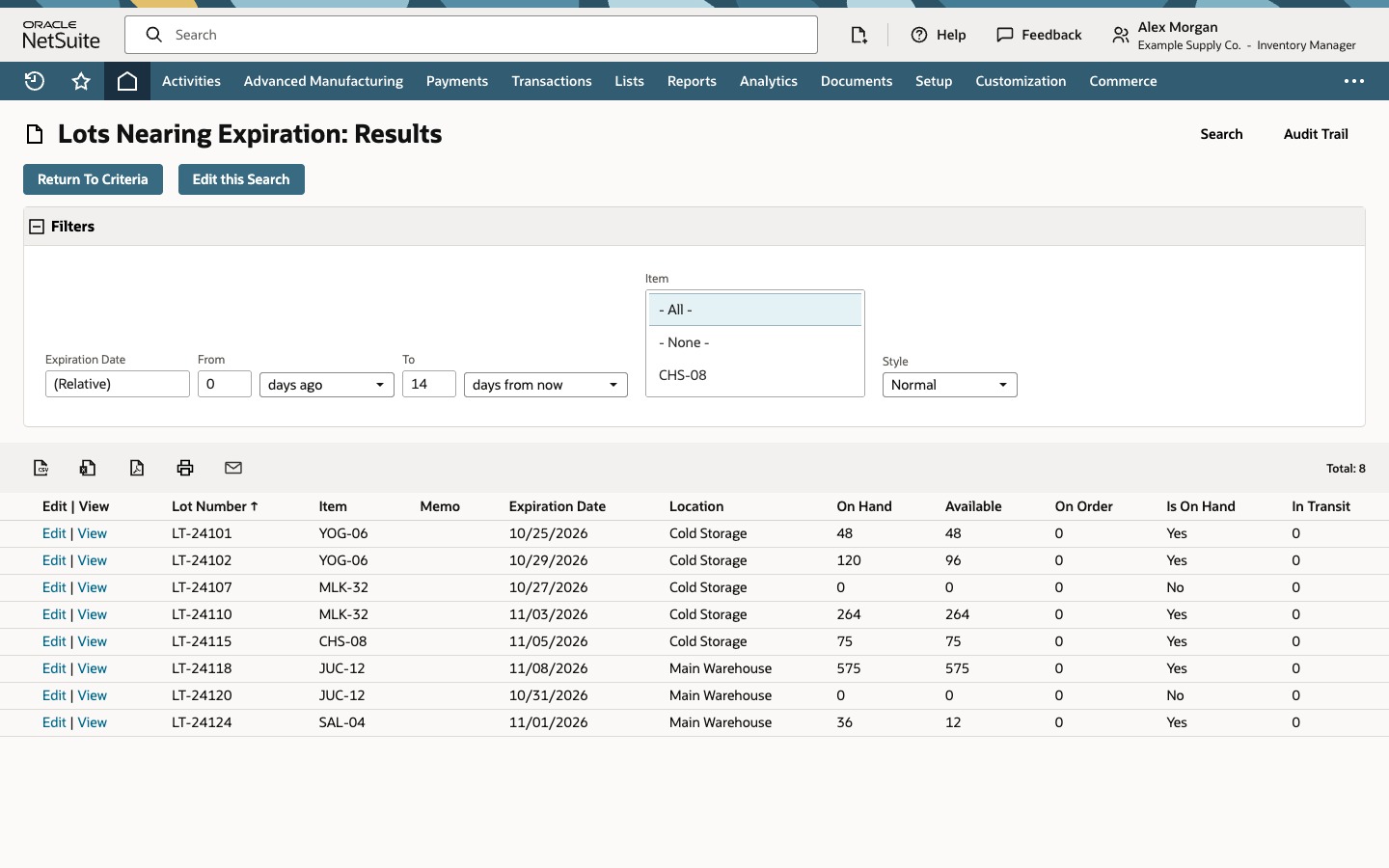
Lots Nearing Expiration: Results opens with a total of 8. Click Filters to see what the list covers. Expiration Date is a relative range from 0 days ago to 14 days from now. That is meant to cover today through 14 days from today, subject to the account time zone, so a lot that expired before today is not in this list. The window comes from the search behind the reminder and can differ in another account or release. Item is not narrowed here, and Style is Normal. Changing a filter on this page refines the view you are looking at and does not by itself change the reminder or the saved search. A filtered list may no longer match the count on Home.
Read the rows. The columns depend on the search behind the reminder. In the example the list is sorted by Lot Number, and each row shows the Item, Expiration Date, Location, On Hand, Available, On Order, Is On Hand and In Transit.
- LT-24101 for item YOG-06 expires on 10/25/2026, which is today. It has 48 on hand in Cold Storage, so it is the first lot to act on.
- LT-24107 and LT-24120 have 0 on hand and Is On Hand No. They stay on the list as lot records, so there is no stock to act on. The search does not filter on quantity.
- LT-24124 has 36 on hand but only 12 available, so part of the lot is already committed.
- LT-24118 is the last lot in the window, on 11/08/2026.
On Hand is the quantity recorded for that lot in the row's location. Available is what can generally still be allocated after commitments. On Order is incoming supply, not stock you hold and not necessarily assigned to that lot yet. Quantities can follow the unit of measure. Check them against a lot record you know before you act on a row.
The dashboard reminder is a warning, not a control. It does not quarantine a lot, block a transaction or change a quantity. Decide what to do with each lot, such as selling it first, transferring it or putting it on hold, and do that through the normal transactions. Edit this Search opens the search definition behind the reminder. Saving changes there can change the reminder for everyone who uses it, so make a copy first if it is a standard or shared search.
Common questions
Does adding the Lots Nearing Expiration reminder change my inventory?
No. A reminder is a dashboard count that opens a search. Adding or removing it changes your Home layout. Adding, viewing or removing it does not create, remove, reserve or reclassify inventory, and opening the results page only runs the search.
Which dates does Lots Nearing Expiration cover?
The search behind the reminder sets the dates. In the example the range is 0 days ago to 14 days from now, which is meant to cover today through 14 days from today, subject to the account time zone. A lot that expired before today is not in it, and a lot with no expiration date is not either. Confirm the range in the Filters section instead of assuming it.
Why does the list include lots with zero on hand?
A lot record can stay in the system after its quantity reaches zero, and the search behind the reminder does not require stock on hand, so those rows appear. The Is On Hand column says No for them. For a stock-only worklist, copy the search or build a new one and add a positive on-hand criterion, using the fields your search type offers.
What do On Hand, Available and On Order mean on a lot row?
On Hand is the quantity recorded for that lot in the row's location. Available is what can generally still be allocated, so it is lower when part of the lot is committed. On Order is incoming supply, not stock you hold and not necessarily assigned to that lot. Values can vary with location, bins, inventory status, units and the search type.
Why can't I find Lots Nearing Expiration in Select reminders?
Check that lot tracking is on, that your role can see lot and inventory data, and that the reminder exists in your account and release. A reminder with no results can also be hidden unless Show reminders with zero results is checked. The reminders offered depend on the account, the role and the release, and a customized account can replace the search.