The quick answer
By default, changing an inventory item's Asset Account or COGS Account can update the account lines on existing transactions that used the item. If an affected transaction is in a closed accounting period, NetSuite can stop the save with a Notice. Go to Setup > Accounting > Accounting Preferences, open Items/Transactions, and check Do Not Update COGS and Asset Accounts on Existing Transactions When Accounts Are Changed. Save, then make the item change again, because checking the preference does not save the edit you backed out of. The item saves, existing transactions keep the accounts they were posted with, and new ones use the new account.
The screenshots show sample data. Person, company, item, customer, account and amount values are fictional. Use your own records and values when following the steps.
Before you start
You need an inventory item (the behavior can differ by item type, and an assembly item has more accounting fields) that a posted transaction in a closed accounting period already used. In this example it is SK-300 Seal Kit, sold on invoice INV-4402 in the closed period Aug 2026. Without a closed-period transaction, the first save succeeds and you never see the Notice. You need permission to edit the item and to change Accounting Preferences. In OneWorld, the new account has to be available to the item's subsidiaries, and with Multi-Book Accounting you should review the impact for each accounting book. Custom forms, roles, workflows and scripts can change the fields and the save behavior.
The preference is an account-wide setting, so it applies to every item account change after you save it, not only to this one. Check with whoever owns your close process first.
The presenter of the source video describes the preference as being for accounts provisioned before the 2021.2 release. An account used to check this walkthrough, on a current release, also shows the checkbox on Items/Transactions, unchecked. Check its state in your own account before you change anything. Page layout and the wording of the Notice depend on your release.
01. Change the Asset Account
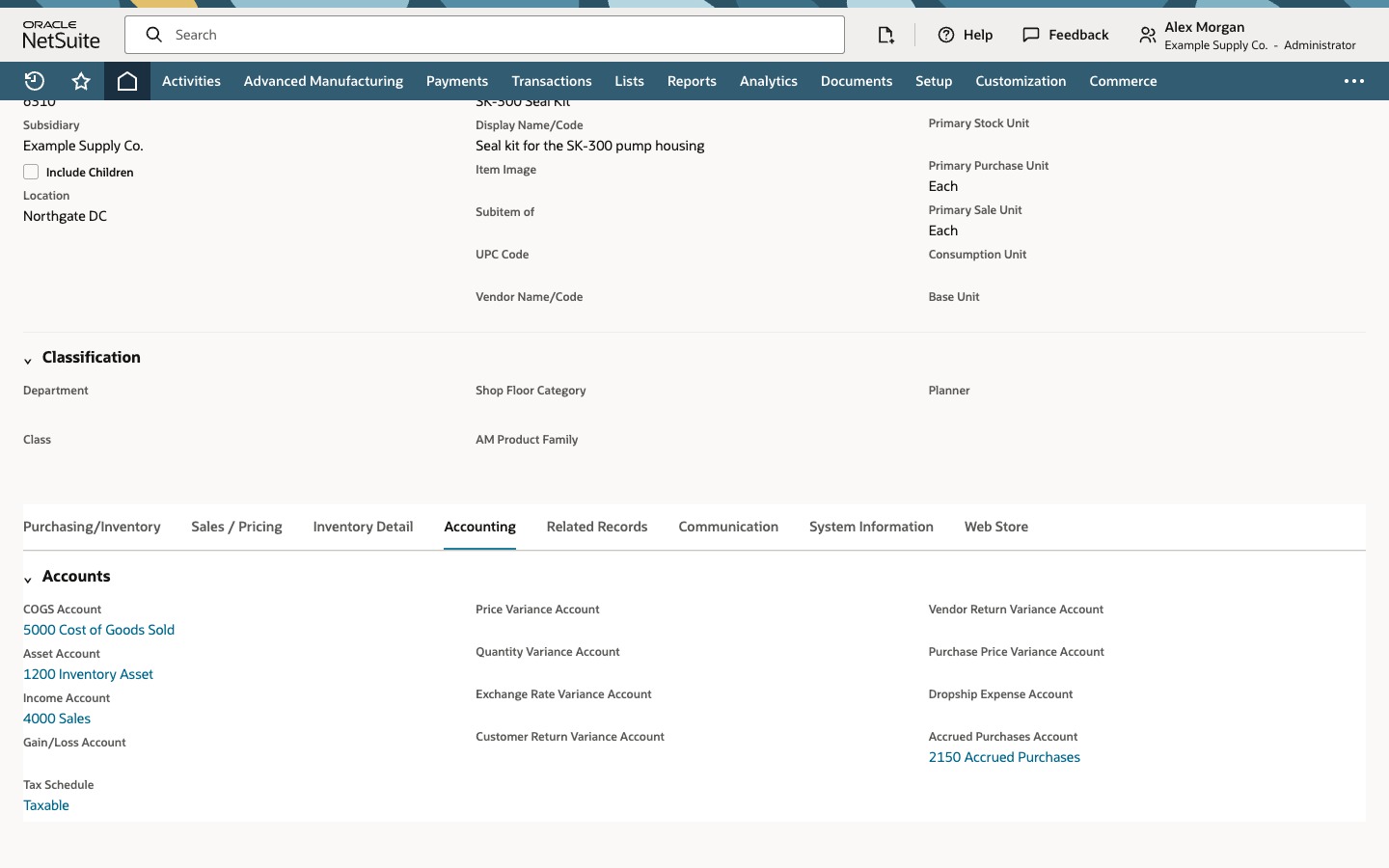
Open Lists > Accounting > Items and open SK-300 Seal Kit. Click Edit and open the Accounting subtab. In Accounts, Asset Account is 1210 Finished Goods Inventory.
Change Asset Account to 1200 Inventory Asset, then click Save.
02. Read the Notice
NetSuite does not save the item. It opens a Notice page: the G/L impact of a transaction in a closed period cannot be changed. Below the message, Summary of impact changes lists what NetSuite would have re-posted, with Accounting Book, Account, Amount, Credit Amount (FX) and Name columns. Here that is the new asset account, Inventory Asset, and the old one, Finished Goods Inventory, for the item's cost on the invoice, and the receivable lines for the invoice's customer. The lines and columns you see depend on the affected transactions, accounting books and currencies.
Click Go Back, then Cancel. The item keeps 1210 Finished Goods Inventory. The usual workaround is to reopen the closed period, which risks changing reported history. The preference below avoids that for asset and COGS accounts.
03. Turn on the preference
Open Setup > Accounting > Accounting Preferences and the Items/Transactions subtab. In Accounts, find Do Not Update COGS and Asset Accounts on Existing Transactions When Accounts Are Changed. In this account it sits between Anyone Can Set Item Accounts and Default Dropship Expense Account, and it is unchecked. Field order can differ in yours.
Check it and click Save. In the recording, NetSuite then opens Setup Manager.
04. Save the same change
Open SK-300 Seal Kit again, click Edit, open Accounting, change Asset Account to 1200 Inventory Asset and click Save. This time NetSuite saves the item and shows Item successfully Saved. If your item form shows an option on the Accounting subtab to update COGS and Asset accounts on existing transactions, leave it clear: selecting it would override the preference for that change.
Open the Accounting subtab. Asset Account now shows 1200 Inventory Asset.
Check the result
- The item saves with the Item successfully Saved confirmation and no Notice.
- The Accounting subtab shows the new Asset Account.
- The preference stays checked on Accounting Preferences, Items/Transactions.
- Transactions posted before the change, including those in the closed period, keep the accounts they were posted with. Transactions you post after the change use the new account. Review a new transaction's GL Impact before you rely on the change broadly.
The preference doesn't move old balances to the new account. If you need the history reclassified, post a journal entry in an open period with your accounting team; it adjusts balances without rewriting the original transactions. The preference also covers only the asset and COGS accounts. It does not cover the item's Income Account, so an Income Account change follows its own rules and a closed period can still block it.
Common questions
Why does NetSuite say the G/L impact of a transaction in a closed period cannot be changed?
Changing an inventory item's Asset Account or COGS Account normally updates the account lines on existing transactions that used the item. A transaction in a closed period can't be re-posted, so NetSuite can stop the item save and show the Notice. It summarizes the accounts and amounts it would have changed. The exact lines depend on the transactions, accounting books and currencies involved.
What does the Do Not Update COGS and Asset Accounts preference do?
It tells NetSuite to leave existing transactions on the accounts they were posted with when you change the item's Asset Account or COGS Account. The item saves, existing transactions keep their old accounts, and new transactions use the new ones.
Does the preference cover the Income Account?
No. It covers only the COGS and asset accounts. An Income Account change follows separate rules, so NetSuite can still try to update existing transactions and a closed period can still block the save. Test that change separately before you rely on it.
Does turning it on move my historical balances?
No. Old transactions stay on the old accounts, so the old account keeps the history and the new account starts with new activity. To move balances, post a journal entry or other adjustment in an open period. That reclassifies balances without rewriting the original transactions.
Is it a setting for one item or the whole account?
The whole account. It is on Accounting Preferences, not on the item, so it applies to every item account change made after you save it. Turn it on deliberately. Some forms also offer an item-level option to update existing transactions for a single change once the preference is on, which overrides the preference for that change.