The quick answer
On WMS mobile, open Inventory > Cycle Count, pick the plan, and tap a bin on Select Task. Confirm the bin and the item, then enter the total you counted in that bin. For a lot-numbered item, Enter Lot comes next: add each lot with its quantity until Quantity Remaining reaches 0. The app goes back to Select Task with the other bins still open. On the desktop, the Inventory Count is still Started, but that bin now has a Count Quantity and a Count Detail icon that opens the lot lines.
The screenshots show sample data. Person and operating-company names are fictional. Use your own records and values when following the steps.
Before you start
The Inventory Count has to exist already. It was generated from a WMS cycle count plan, released, and started, so its tasks are on the handheld and the snapshot is taken. The location uses bins, and the item is lot numbered. Here the count includes the item in three bins, so there are three count tasks. The number of tasks comes from the item and bin rows the plan generated, not from where the item has stock. You need WMS mobile access to count. Viewing the count on the desktop needs inventory count permission, and completing and approving it need more. The mobile page names, the Inventory Status field and the lot list depend on your WMS configuration and release.
01. Look at the started count
Open the Inventory Count. Here that's IC231 for Northgate DC. The status is Started, and the Items sublist has one line for each bin: B2-07-A, B2-07-B and B2-07-C, all for RES-4410. Count Quantity is blank on every line because nobody has counted anything yet.
02. Open the tasks on mobile
From Mobile Emulator > Mobile Emulator > Mobile Screen (or your handheld), the app opens on Select Application. Choose WMS and the warehouse, then Inventory > Cycle Count. On Select Plan, pick IC231, which has 3 count tasks. Select Task lists the tasks, one row for each bin and item.
03. Count the first bin
Tap B2-07-A. Enter Bin shows the Expected Bin, the bin this task directs you to. Scan or type the bin and click Enter Bin, so you know you're at the right shelf. Then scan or type the item, RES-4410, and click Enter Item. If the bin had none of this item, Zero Quantity on this page would record a zero count instead. It doesn't skip the task.
For a lot-numbered item, Enter Quantity asks for the total quantity for all lots, and the lot quantities come on the next page. Type 480, the total you found in B2-07-A, and click Enter Quantity.
04. Split the total across lots
Enter Lot opens with Quantity Remaining at 480 EA, the total you just entered. It also shows a Scan/Enter Lot field, a quantity with its unit, Inventory Status and a list of lots. Inventory Status appears when statuses are turned on; here it's Good. The list is a convenience for picking a lot.
Pick LT-250611 from the list (or scan or type it), enter 180 and click Enter Quantity.
Quantity Remaining drops to 300. Add LT-250722 with 150 and it drops to 150.
Add LT-250904 with 150. Quantity Remaining reaches 0. The lots now account for the total, the task is saved, and because two tasks are still open the app returns to Select Task.
05. Check the task list
Select Task now lists only B2-07-B and B2-07-C. The bin you counted has moved out of the open list. Turn on Show Completed to review it. Here the completed table shows B2-07-A, RES-4410 and 480 EA.
06. Read the lot detail on the count
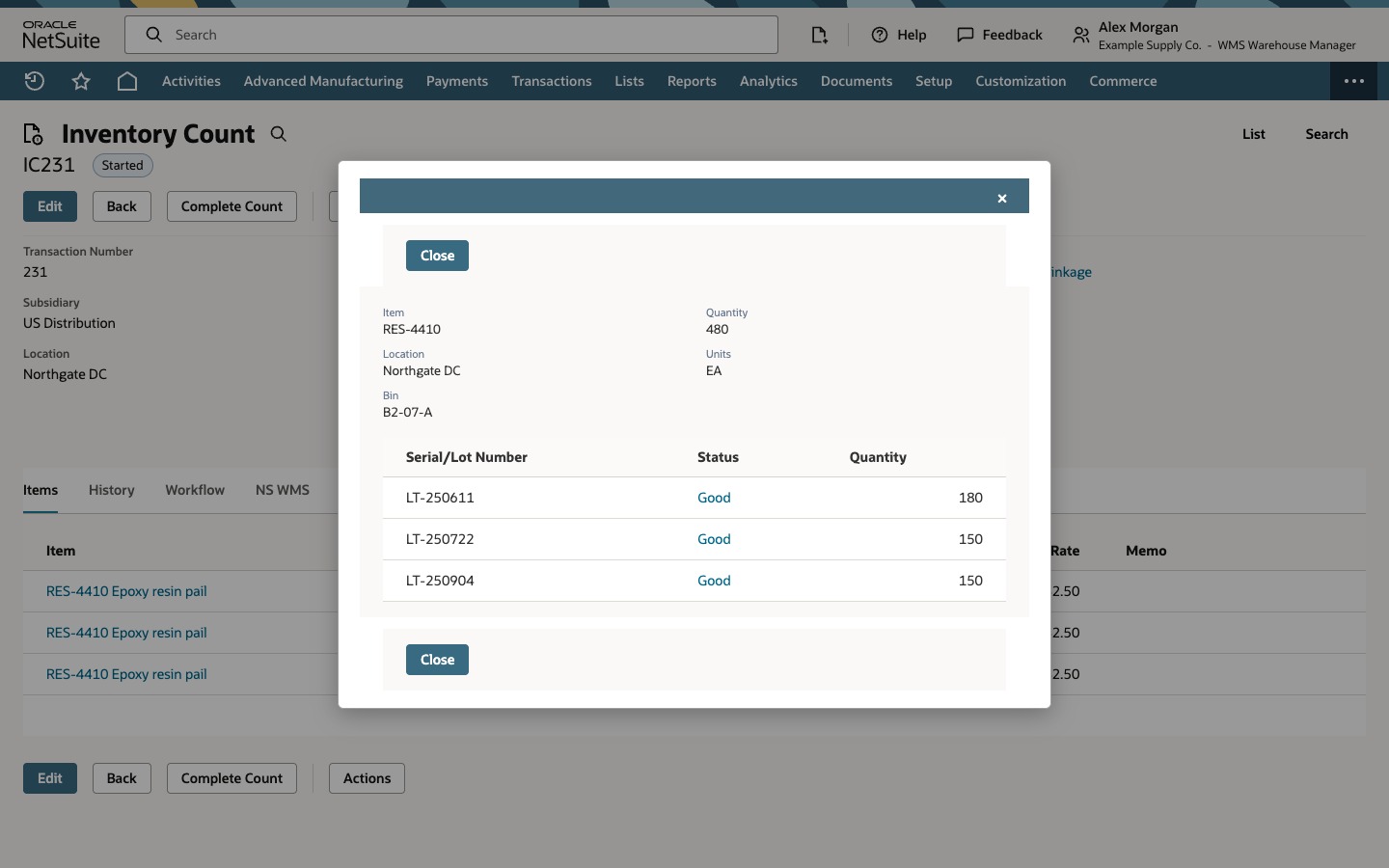
Back on the desktop, open IC231 again. It's still Started. Finishing a bin on mobile doesn't complete the count. Count Quantity shows 480 on the B2-07-A line, with a Count Detail icon beside it. The B2-07-B and B2-07-C lines are still blank, because those tasks haven't been counted.
Click the Count Detail icon. The popup shows the item, the quantity, the location, the units and the bin, and below them one row for each lot with its status and quantity. The three lots add up to the 480 on the line. Field labels and layout can vary with your form and release.
Check the result
- Select Task lists only the bins that are still to count, and Show Completed lists the one you finished with its quantity.
- The Inventory Count is still Started.
- Count Quantity on the counted line equals the total you entered (480).
- In Count Detail, the lot quantities add up to the Count Quantity (180 + 150 + 150 = 480), and each lot has the status you counted it at.
- The lines for the bins you haven't counted still have no Count Quantity.
The next steps are separate: someone with permission completes the count, which moves it to Completed/Pending Approval, and then approves or rejects it. Nothing changes the on-hand quantity until the count is approved.
Common questions
Why does the app ask for a total before the lots?
In the standard lot-entry sequence, the first quantity is the total counted for that item in that bin. The lot entries that follow allocate the total among lots. Quantity Remaining shows what hasn't been assigned to a lot yet, so the lot detail has to agree with the total before the task is treated as done. An account rule can change this sequence.
What if the lot quantities don't add up to the total?
Quantity Remaining stays above 0 until the lots account for the total, and the task isn't finished. The app generally checks quantities that go past the remaining amount, but the exact message and the buttons for correcting a mistake depend on your WMS version and rules. If the total itself was wrong, use the available back or restart action before you submit the task. Don't assume every account lets you change the total from the lot page.
Can I enter a lot that isn't in the list?
The list is a convenience for selecting lots, and you can generally scan or type a lot number in Scan/Enter Lot. Whether a typed lot is accepted depends on the item's lot setup, the bin and location, inventory status rules and your WMS configuration. A field that accepts text doesn't mean the lot is valid, so test a new lot number in a small count first.
What does Zero Quantity do?
On Enter Item, Zero Quantity records a zero count for that item in that bin and completes that task. Use it when the item isn't in the bin. It doesn't skip the task without recording anything. Other items in the same bin are separate tasks.
Why is the Inventory Count still Started?
Mobile entry records the count, but it normally leaves the Inventory Count Started. Someone with permission has to click Complete Count, on the desktop or, if the WMS rule Start and Complete Counts on App is on, on the app, which moves it to Completed/Pending Approval. Approval is a separate action, and that's what normally posts an inventory adjustment for any difference.