The quick answer
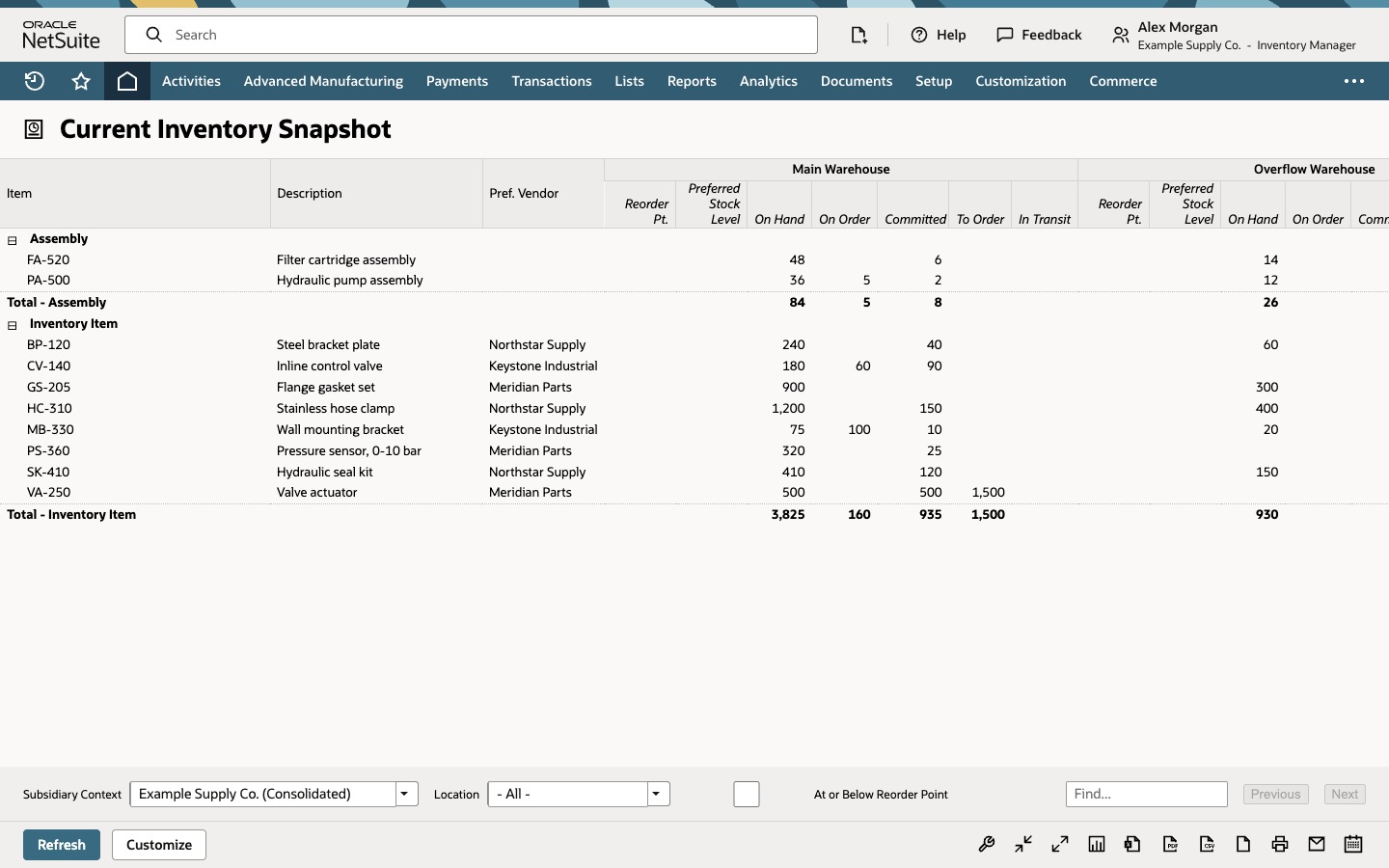
Open Reports > Inventory/Items > Current Inventory Snapshot, choose the warehouse in Location and click Refresh. If an item shows stock in On Hand and a To Order quantity as well, look at Committed. Click that figure to open Items Pending Fulfillment and read what the open sales orders ordered, fulfilled and committed. In the example, VA-250 has 500 on hand, all 500 committed to one order for 2,000, so the other 1,500 have no stock behind them and show as To Order.
The example is a distributor with a Main Warehouse and an Overflow Warehouse. The screenshots use sample data, and the person and operating-company names are fictional.
Before you start
Your role needs access to the Current Inventory Snapshot and permission to view the sales orders behind it. The report is under Reports > Inventory/Items. The snapshot is a live view, so the figures change as transactions are saved. The location column groups in this guide assume Multi-Location Inventory. Which items, locations, columns and default filter you see depends on your role, the subsidiary context, enabled features, the release and any customization of the report. Reorder Pt. and Preferred Stock Level are item-location or preferred-location settings, so they can be blank for a location that is not the item's preferred one. The behavior described here was observed in the example account.
01. Open the Current Inventory Snapshot
Go to Reports > Inventory/Items > Current Inventory Snapshot. The report opens with Location set to - All -, so each location has its own group of columns. Every group has Reorder Pt., Preferred Stock Level, On Hand, On Order, Committed, To Order and In Transit, and the Total group comes last. Items are grouped by item type, and each group ends with a Total - row.
02. Show one warehouse
At the bottom of the report, open the Location list, choose Main Warehouse and click Refresh. The report now shows the Main Warehouse columns followed by the Total columns. Choosing a location does not change any stock. It only changes which columns are shown. The Total columns show the report's total for the item rather than only the chosen warehouse, and their exact scope depends on your subsidiary and location setup, so compare a location's figure with the Total only when you mean to.
03. Read the item row
Type the item in Find at the bottom of the report and press Enter, or scroll to it. VA-250, Valve actuator, shows an On Hand of 500, so the warehouse does not look short. Its Committed is also 500, which means all of the stock is already reserved for open demand, and On Order is blank, so nothing is on its way. Its To Order is 1,500.
On Hand is what is in stock. Committed is the part reserved for open demand, mainly sales orders waiting to be fulfilled, and the rest is what is still available. An item whose On Hand equals its Committed has nothing free to sell, however large the On Hand looks.
04. Open the demand behind Committed
Click the Committed figure on the VA-250 row. In the example account, Items Pending Fulfillment opens for that item, with a Back to Summary link beside the title. It lists the open sales orders with Ordered, Fulfilled and Committed columns. In the example there is one: Sales Order SO4417 for Brightwater Supply, dated 10/12/2026, with Ordered 2,000, Fulfilled 0 and Committed 500.
05. Explain the gap and go back
The warehouse can cover only 500 of the 2,000 ordered, so 2,000 - 500 = 1,500 have no stock behind them. That matches the To Order quantity on the snapshot. The arithmetic is this simple only because the example has one open order as its only demand, nothing on order, no stock-level target and no reorder rule that changes the result. It is an explanation for this item, not a formula for To Order in general.
Click Back to Summary to return to the snapshot. It reopens with Location set to - All - again, so choose the warehouse once more if you want to keep working on it. Then check the same row's On Order and the item's reorder settings, and decide whether to order, expedite supply or talk to the customer. The report does not create purchase orders.
Common questions
Why does the Current Inventory Snapshot show To Order when I have stock on hand?
On Hand is what is in stock, and part or all of it can already be committed to open sales orders. To Order is a replenishment figure that NetSuite works out from demand, available stock, quantity already on order and the item's stock-level settings. If all the stock is committed and the open order asks for more, the shortfall shows as To Order. Click the Committed figure to see the orders behind it.
Is To Order always ordered minus committed?
No. In the example it works out that way because one open sales order is the only demand and nothing is on order. A preferred stock level, quantities on order, backorders, reorder multiples, minimum order quantities, units and other planning settings can change To Order, so read the row's other columns and the item's settings before you explain a number. Even when 2,000 - 500 gives the remaining demand, that alone does not prove what To Order will show.
What does Committed mean on the Current Inventory Snapshot?
It is the quantity reserved for open demand, mainly sales orders waiting to be fulfilled. The part of On Hand that is not committed is what is still available.
What does clicking the Committed figure open?
It opens Items Pending Fulfillment for that item, with the sales orders that make up the commitment and their Ordered, Fulfilled and Committed quantities. Back to Summary returns to the snapshot.
What does the At or Below Reorder Point checkbox do?
It limits the rows to items at or below their reorder point. It changes which rows are listed, not the On Hand, On Order, Committed or To Order figures.