The quick answer
Open the picked order in Ship Central under Packing > Sales Order. Build a carton for the loose items with Add Carton, Pack and Pack Carton. For a line marked in the SHIP AS IS column, just choose Pack: Ship Central creates a separate closed carton for it, with no quantity, weight or size to enter, and opens the Print dialog for the PackShip Carton Label report. Choose a printer and Print, or Skip. Packing Summary then lists both cartons with their size and weight. Nothing is shipped yet.
The screenshots show sample data. Use your own records and values when following the steps.
Before you start
A Ship As Is line comes from the item record. In the account used for these screens, the item has Ships Individually checked in the Shipping section of the Sales / Pricing subtab, an Item Weight there, and Pack Carton Length, Width and Height on the Ship Central subtab. The loose item's Packing Instructions text lives on that subtab too. Other forms and item types can place these fields elsewhere, for example on a custom subtab, and the pages below do not show the item record, so check it in your own account. For an item that ships individually, the item weight is used as the carton weight, subject to your default weight unit and any tare or calculated-weight settings.
You also need Ship Central enabled and configured; this example uses it with WMS and outbound staging bins. You need a sales order that is Fully Picked with pack status Not Started, a shipping method and carrier that Ship Central can pack, and a configured carton size. The packing instructions popup needs instructions on the item and the Show Packing Instructions rule on. The manual label prompt needs mobile printing set up with a printer and the standard carton label template. With automatic printing the prompt may not appear, and without a printer you can still choose Skip. Buttons and prompts vary with your Ship Central rules and release.
01. Open the picked order
On the mobile device open Ship Central, choose the warehouse, here Harbor Point DC, then Packing and Sales Order. On Select Bin choose the staging bin, here PACK-STAGE-02. On SALES ORDER, tick the order. SO-48215 for Linden Valley Hardware is Fully Picked and its pack status is Not Started; the selected order's customer, ship method, carrier and address appear above the list. Choose Enter Order. If the picked items sit in more than one bin or pick carton, an Order Details page can appear first; choose Pack Order and make sure every listed bin or pick carton is packed.
On PACK ITEMS INTO CARTONS, Items to Pack lists TP-220 (4 Each) and PB-77 (1 Each). Only PB-77 has an icon in the SHIP AS IS column. That icon is the difference between the two lines for the rest of the walkthrough.
02. Pack the loose item into a carton you build
Choose Add Carton, keep the suggested name SO-48215-1 and confirm with Add Carton. Choose Pack on TP-220. When the item has packing instructions and the rule is on, an Item Packing Instructions popup appears first. Here it says to wrap each wrench in a foam sleeve before cartoning. Read it and choose Ok.
Enter quantity 4 and choose Enter Quantity; TP-220 moves to Items Packed. Choose Pack Carton, enter the carton weight 6.5 with unit lb, choose the 12 x 12 x 12 carton size and choose Pack Carton in the dialog.
The carton is now closed. The footer offers Open Carton and, because PB-77 is still to pack, Add Carton.
03. Pack the Ship As Is item and print its label
Choose Pack on the PB-77 line. You are not asked for a quantity, a weight or a size, and you do not need an open carton. That is expected here: PB-77 has a quantity of 1, it is set to ship individually, and its item weight and carton size are filled in. Ship Central creates a separate carton for the item and opens the Print dialog for the PackShip Carton Label report. In this example the dialog opens with the message You must make selections in all required fields and the Printer still set to - Select -. The Template is already PackShip Carton Label Template.
Open the Printer list, choose Warehouse PDF Printer and choose Print. This prints the carton identification label. Skip continues without printing and keeps the carton.
PB-77 is now under Items Packed in a new carton, SO-48215-2, with the Ship As Is icon. Items to Pack is empty. The footer shows Delete Carton and Next, with no Open Carton or Add Carton, and the carton strip lists SO-48215-2 above SO-48215-1.
04. Check both cartons on Packing Summary
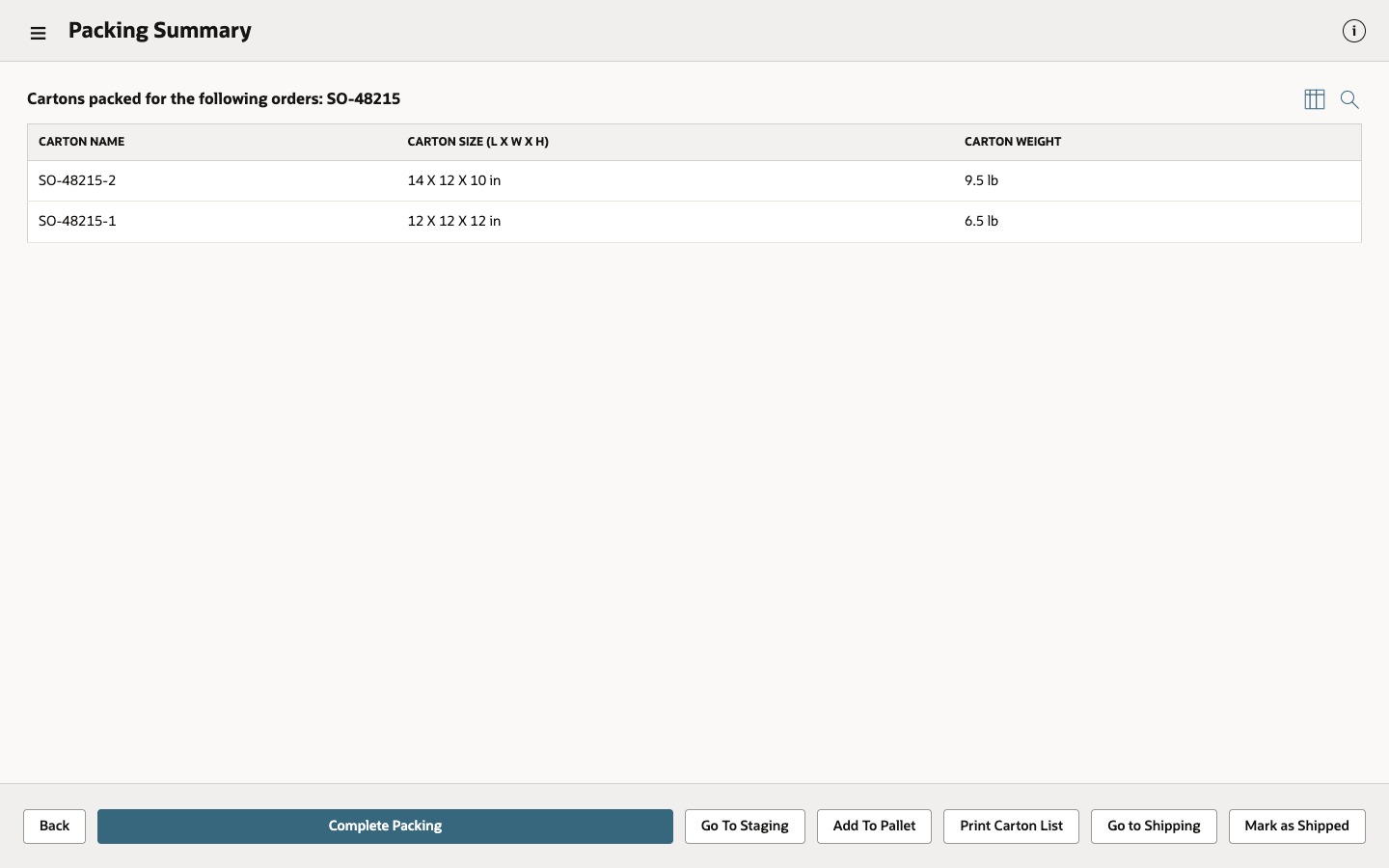
Choose Next. Packing Summary lists the cartons packed for SO-48215, newest first. SO-48215-2, the Ship As Is carton, shows 14 X 12 X 10 in and 9.5 lb. Nobody typed those values; they come from the item's own weight and carton size. SO-48215-1 shows the 12 X 12 X 12 in and 6.5 lb you entered.
Check the result
- The loose item is in the carton you added, SO-48215-1, and the Ship As Is item has its own automatically closed carton, SO-48215-2.
- The Ship As Is carton shows the size and weight stored on the item, so a blank or wrong value there points back to the item record.
- Packing is not complete. Reaching Packing Summary does not submit the session; Complete Packing does. The footer in this example offers Complete Packing, Go To Staging, Add To Pallet, Print Carton List, Go to Shipping and Mark as Shipped, and the order is not shipped. Your account may show fewer buttons.
Common questions
What does Ship As Is mean in Ship Central?
It marks a line whose item is set to ship individually on the item record. The item arrives in its own box, so Ship Central packs it into its own carton instead of putting it into one you build. The icon in the SHIP AS IS column shows which lines work this way.
Do I have to enter a weight and size for a Ship As Is item?
Not normally. Ship Central closes the carton using the item's weight and its pack carton length, width and height. If a required value is blank or invalid, Ship Central may ask you to enter the missing carton details on the device, so fill them in on the item record rather than relying on a default.
What if the Ship As Is line has a quantity above 1?
For a Ship As Is line, Ship Central creates one closed carton for each unit, not one carton holding all of them. Each carton uses the item's own details. An ordinary item packed into a carton you add does not work this way. The walkthrough uses a quantity of 1.
Does printing the carton label ship the order?
No. The label identifies the carton. It is not a carrier shipping label, it carries no tracking number, and nothing is bought from a carrier. Shipping is a separate step from Packing Summary or the Shipping menu.
Does Skip cancel the carton?
No. Skip bypasses that print step. It does not undo the packing, so the carton stays created and closed and the item stays under Items Packed. You can delete the carton from the footer if you packed it by mistake.