The quick answer
Open the sales order in Pick Order (Single) on the handheld, choose the kit grouping control so the KIT heading lists the components, then pick each component and each item under NON-KIT ITEMS by entering its quantity and scanning its bin. When every line shows nothing remaining, choose Save and reload the sales order. The kit line's Picked shows the kit quantity, here 2, and each ordinary line shows its own picked quantity.
The screenshots show sample data. Use your own records and values when following the steps.
Before you start
OzLINK Mobile is a partner handheld application, not the native NetSuite WMS Mobile interface. Its menus, pick screens and the way it writes picked quantities to the sales order depend on how your account is configured, so treat what you see on the handheld as the partner's behaviour.
You need a sales order with a Kit/Package line, an operator who can open it in the handheld application, and the source bins for each component. The quantity to pick is the quantity of each component on the kit item multiplied by the kit quantity on the order, subject to the item units, any inventory detail and the picking application's configuration. Here two kits of two components at one each need two of each component.
01. Review the kit on the order and the kit item
Open sales order SO-72531. On Items, the KIT-300 line has quantity 2, and Picked is 0 on every line. The order also has two ordinary lines, B-220 and E-815.
Open the KIT-300 item. On Purchasing / Inventory, open Components. The kit has two members, A-410 and B-220, at quantity 1 each. Display Components on Transactions is not checked, so the sales order shows only the kit line.
02. Open the order on the handheld
On the handheld, open Pick Order (Single), search for SO-72531 and select it. The default list is sorted by bin. The kit's components are mixed with the other items, and B-220 appears twice: once as a kit component with 2 to pick and once as an ordinary line with 1 to pick.
03. Group the pick list by kit
Choose the kit grouping control in the header. The list regroups: a KIT: KIT-300 Desk Starter Kit heading holds the two components, and a NON-KIT ITEMS heading holds the ordinary B-220 and E-815. Grouping is a choice you make; the list does not start grouped.
04. Pick the kit components
Scan A-410, or touch the line. The pick screen prompts Pick: 2 @ Bin C14. Enter quantity 2, scan bin C14 and choose Pick. Do the same for B-220 under the kit: quantity 2, bin D22.
Back on the list, the kit heading and both components show Picked 2 and Remain 0. The kit heading counts whole kits, so it reaches 2 only when both components cover both kits.
05. Pick the non-kit items
Pick the ordinary B-220: quantity 1, bin D22. Then pick E-815. This item is sold by the box, and the pick screen shows its unit of measure, BX, so check the unit before you enter the quantity. Enter 1 and scan bin D22. Every line now shows nothing remaining.
06. Save and read the sales order
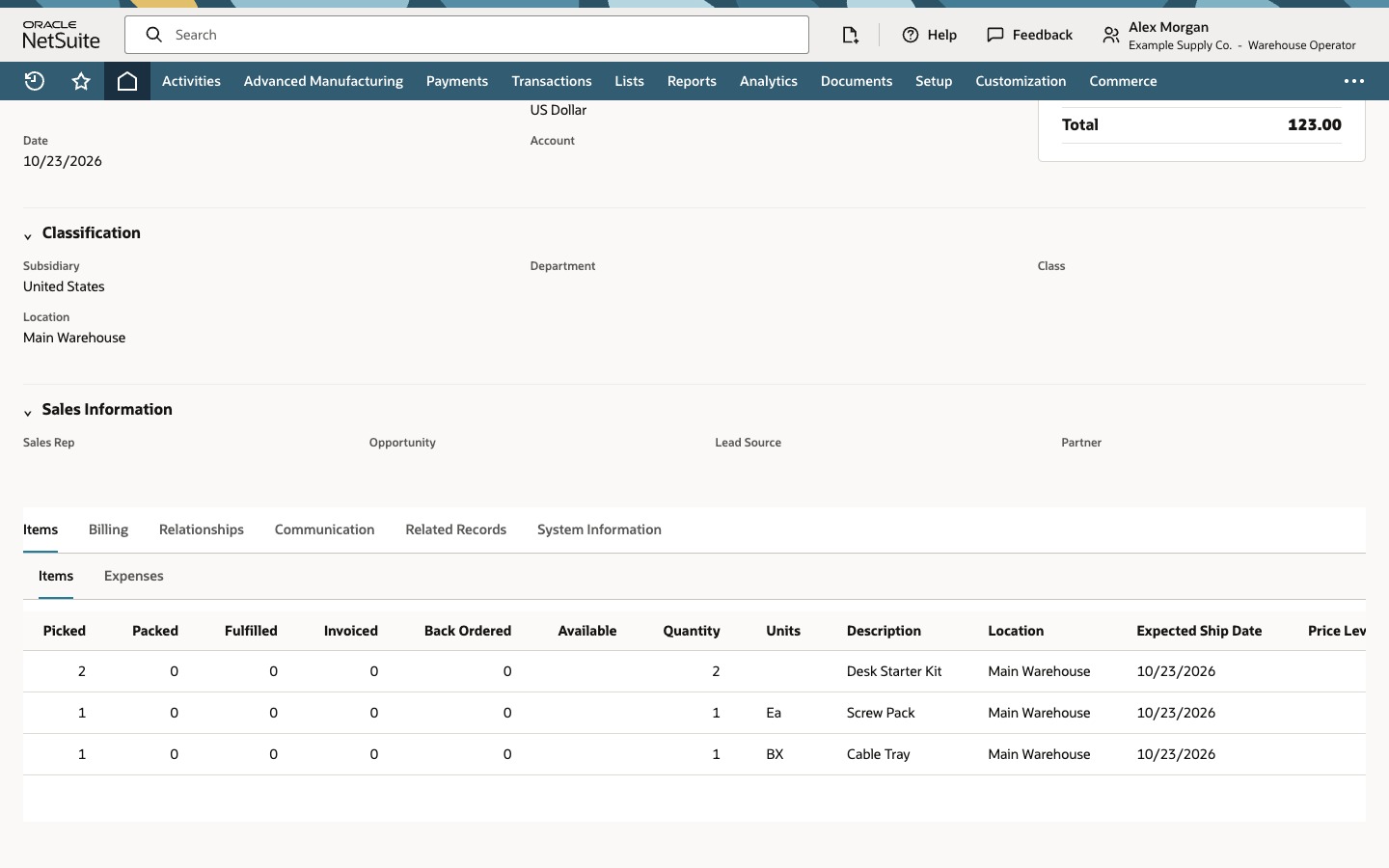
Choose Save. The handheld returns to the order search. Reload SO-72531 in NetSuite and read the Items grid.
Check the result
- The KIT-300 line shows Picked 2, the kit quantity, and B-220 and E-815 each show Picked 1.
- Packed and Fulfilled are still 0. The save recorded the picks; it did not pack or ship anything.
- The sales order does not say whether the save created an item fulfillment. If you need one, check the order's Related Records or the fulfillment list before telling anyone the order shipped.
Common questions
Do I pick the kit or its components?
The components. A kit is sold as one line but the warehouse picks its member items. The quantity to pick for each member is its quantity on the kit times the kit quantity on the order.
Why does the same item appear twice on my handheld list?
An item can be both a component of a kit and a separate ordinary line on the same order. In the default list the two lines look alike. Group the list by kit to separate them under the KIT and NON-KIT ITEMS headings.
Is grouping by kit the default?
No. In this walkthrough the operator chooses the grouping control. The default list is sorted by bin.
What does Picked show on the kit line?
The number of complete kits the integration recognizes as picked. With two kits and both components picked twice, the kit line shows Picked 2 in this walkthrough. The partner application writes this value, and earlier fulfillments are included in the totals, so confirm it against the component quantities in your own account.
Does Display Components on Transactions change what the handheld shows?
It controls whether members are shown on the sales order and on printed transactions. What a warehouse handheld lists is controlled by the partner application and the warehouse configuration, and picking tickets have their own kit preference, so do not rely on the checkbox alone. Native NetSuite WMS applies its own pick-task grouping rules, which can differ from this partner handheld.