The quick answer
In WMS Mobile, receive each lot of the pallet separately against the same PO line: open Receiving → Purchase Order, tap the item, enter the lot, its expiration date and its own quantity, and choose the staging bin. Repeat for the second lot until nothing remains on the line. Then open Receiving → Putaway → Bin Putaway, choose the staging bin and item, check Expected Lots, tap Put Away All and select one bin on Enter To Bin. In this example, 100 Each of AP-26301 and 20 Each of AP-26307 move from Inbound Stage 01 to OV-C-02.
The screenshots use sample data, including the PO, lots, quantities, bins and messages, and fictional person and operating-company names. Menu paths, screen names and messages can differ by release, role and warehouse configuration. The walkthrough shows the handheld screens only. It does not open the saved Item Receipt or the bin balances on the desktop.
Before you start
Use an approved, directly receivable PO line at the chosen warehouse, here PO-77310 with 120 Each of a lot-numbered item. The item must be configured for bins at that location, the warehouse must be set to stage received items before putaway, and the location needs an eligible inbound staging bin and eligible storage bins. The receiver needs WMS Mobile receiving and putaway access, and the PO should be an ordinary one, not tied to an inbound shipment, drop ship or special order. Know each lot's quantity before you start: the two quantities must add up to what you receive, here 100 + 20 = 120 Each. The expiration date field is available on the receive screen; this example enters both dates. Do not rely on NetSuite to fill a blank date from the item's shelf life unless your account is set up and tested for that.
The destination bins on Enter To Bin come from the item's attributes and the warehouse putaway rules. Bin eligibility can also depend on bin type, inventory status, preferred bins, zones and the bin's current contents. Whether two lots can share one bin depends on the mixing settings for the item and the bin. If Manually post item receipts? is enabled, receiving needs a separate posting step before a receipt exists. The mobile messages are not a saved-record check, so confirm the receipt and the bin balances on the desktop when they matter.
01. Open the PO line
In WMS Mobile, choose the warehouse Westfield Depot, then Receiving → Purchase Order. Choose Select PO From List and select PO-77310 from Harvest Table Foods. On Enter Item, check that PRS-120 apricot preserves, 8 oz jar has 120 EA remaining, then tap it.
02. Receive the first lot
On Enter Lot, type AP-26301 and the expiration date 03/15/2028, then tap Enter Lot. On Enter Quantity, Quantity Remaining shows 120 EA and Inventory Status is Good. Enter 100 and tap Enter Quantity. On Enter Bin, select Inbound Stage 01 and tap Enter Bin. The PO line does not close: back on Enter Item it shows 100 received and 20 remaining.
03. Receive the second lot
Tap the item again. On Enter Lot, type AP-26307 and the expiration date 05/09/2028. On Enter Quantity, enter the 20 that remain, keep status Good, and choose Inbound Stage 01 on Enter Bin. When nothing receivable is left, the handheld reports that all items for PO-77310 have been received. This message confirms the receiving task; the stock is still in the staging bin.
04. Open the staged item
Return to the main menu and open Receiving → Putaway → Bin Putaway. The staging list shows Inbound Stage 01 holding the received quantity. Select it, then select PRS-120 apricot preserves, 8 oz jar, which shows 120 EA in Good status.
05. Put both lots away
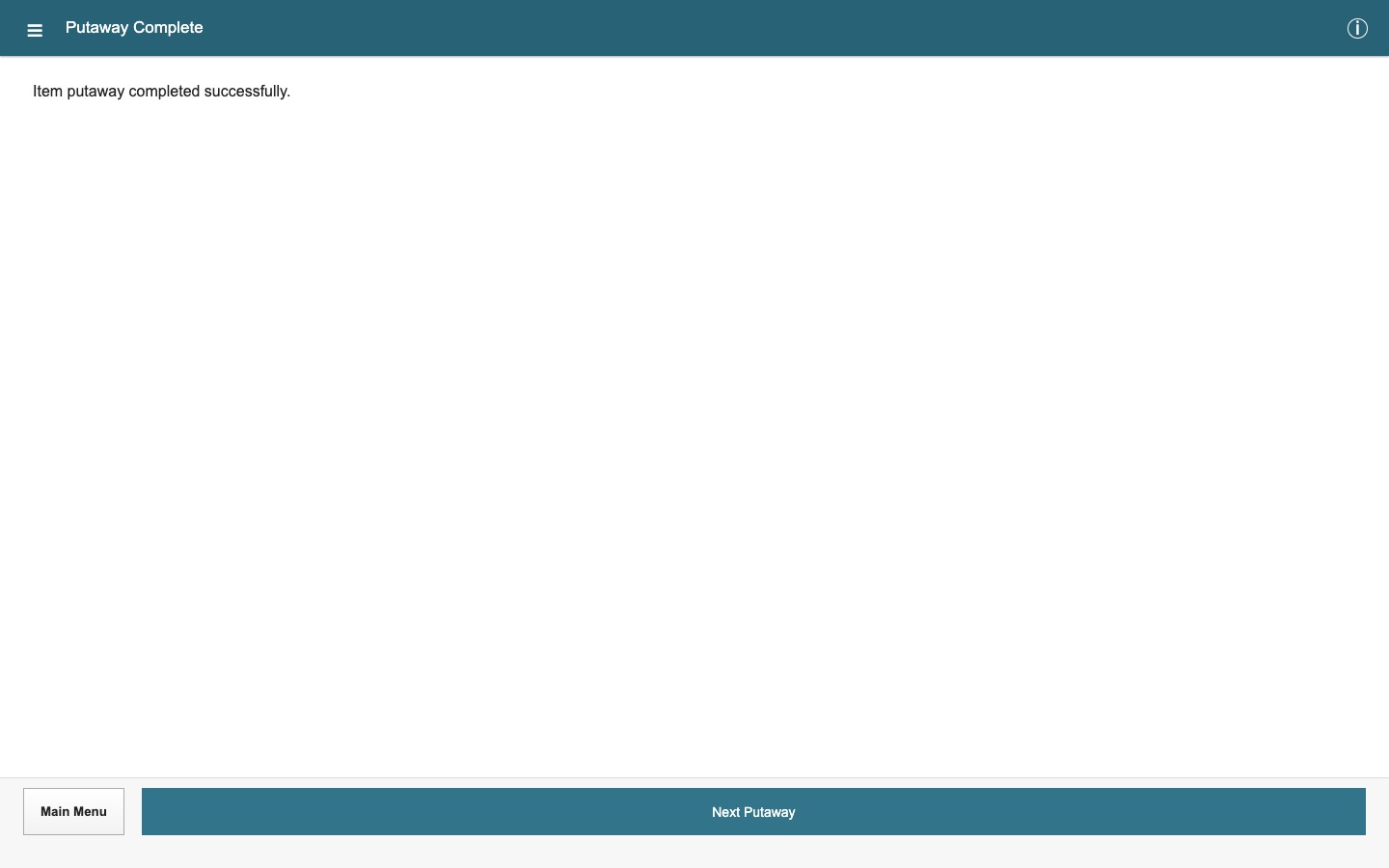
On Expected Lots, check the two rows: AP-26301 with 100 EA and expiration 03/15/2028, and AP-26307 with 20 EA and expiration 05/09/2028, both Good. Use Put Away All only when every listed lot and one destination bin are eligible together. Tap it instead of entering each lot. In this example Enter To Bin follows, listing the bins the warehouse offers for the item; select OV-C-02 and tap Enter To Bin. If your account shows a review page first, confirm the quantities and statuses there. WMS Mobile reports Item putaway completed successfully. The action covers both lots and each keeps its own lot number and quantity. If the lots cannot share a bin, put them away one at a time to eligible bins.
Check the result
- Expected Lots showed both lots, 100 EA and 20 EA, before you tapped Put Away All.
- The destination is OV-C-02 and the handheld reports the putaway completed.
- To confirm the saved result, open the Item Receipt, the item's Inventory Detail and the bin balances in NetSuite.
Common questions
Why does the item stay on the list after I receive the first lot?
The PO line still has 20 EA left to receive. The item stays on the list of open items until the remaining quantity is zero, so you can receive the second lot against the same line. Completed lines can move to Show Completed.
What does Put Away All do with two lots?
It proposes moving all the expected quantities shown for the item in the current putaway task to one destination bin that you choose. Each lot keeps its own lot number, expiration date and quantity. The move still depends on eligible quantities, bin rules and whether the destination allows the lots to be mixed.
Do both lots have to go into the same bin?
Put Away All is meant to send the selected quantities to one bin, and that bin must be eligible for both lots and allow the lot mixing. If it is not, put each lot away separately to an eligible bin.
Does "received" on the handheld mean the item receipt posted?
Not necessarily. If Manually post item receipts? is enabled, receiving records the mobile work and a separate posting step is needed. If it is disabled, WMS can generate the Item Receipt automatically. Check the saved receipt rather than relying on the handheld message.
Do I have to enter an expiration date?
The Expiry Date field is available on the receive screen and may be optional in your account. This example enters both dates. Whether a blank value is accepted depends on item requirements, validation and the receiving flow, and a blank date is not calculated from shelf life unless your account is configured and tested for that.