The quick answer
In the SCM Mobile app, open WMS, pick the warehouse, then choose Receiving > Purchase Order > Select PO From List and select the PO. On Enter Item, scan the barcode printed on the case. The item alias for that barcode selects the item, and in this example the unit list on Enter Quantity reads Cases(5). Type 5, choose a stock location with Show Stock Locations, and choose Enter Quantity. NetSuite receives 25 Each against the PO, because five cases of five Each make 25. Check the unit and the remaining quantity before you type, because the quantity counts in whatever unit is selected.
The screenshots show sample data. Person and operating-company names are fictional. Use your own records and values when following the steps.
Before you start
The account needs NetSuite WMS and the SCM Mobile app, a receiver who is allowed to receive at the warehouse, a location with Use Warehouse Management on and Use Bins off, and an approved, receivable purchase order whose location matches the warehouse you select in the app. Outsourced orders, drop shipments, special orders and lines linked to an inbound shipment can follow other flows. The item needs a units type that holds both Each and a case of five. A WMS Item Alias record must carry the case barcode as its Name, point to the item, name the case unit as its Alias Unit (some forms label it Units), and stay active. This account posts item receipts automatically. If the WMS rule Manually post item receipts? is on, the item receipt is posted later from Post Item Receipt or your configured desktop posting process.
Whether a scan sets the unit by itself depends on the barcode type, your release and your setup. Check the unit list and Quantity Remaining before you type, and choose the case unit yourself if the list still reads Each. Confirm that one case equals five Each. Lot-controlled and serialized items add lot or serial pages before the receipt.
01. Check the purchase order
Open PO72310 on the desktop. It is Pending Receipt at Harbor Storefront. On the Items tab, SNK-1375 shows Quantity 25 in Each and Received 0.
02. Check the item alias
Open the WMS Item Alias record for the case barcode, 850011223344. Item reads SNK-1375, Alias Unit reads Cases(5) and Inactive is clear. This record is what turns a scan of the case barcode into the case unit. Check that the alias unit belongs to the item's units type and that no other item uses the same barcode.
03. Open Purchase Order receiving and select the PO
On the receiver's device, open SCM Mobile, choose WMS, choose Harbor Storefront on Select Warehouse, then choose Receiving on Main Menu. Choose Purchase Order, then Select PO From List, and select PO72310. Enter Item lists SNK-1375 with Received 0.
04. Scan the case barcode
In Scan/Enter Item, scan or type 850011223344 and choose Enter Item. Enter Quantity opens for SNK-1375. Quantity Remaining still reads 25 Each(1), but the unit list beside Enter Quantity now reads Cases(5). The quantity you type is counted in that unit, so check it before you type.
05. Receive 5 cases into a stock location
Keep Inventory Status on Good and type 5. There is no Enter Bin step at a location that does not use bins. Turn on Show Stock Locations to list the places where this item is normally kept, here Front Shelf and Back Stock. They are item-level locations and not bins. Select Front Shelf, then choose Enter Quantity. In some setups the stock location choice is optional.
06. Read the PO Received message
PO Received says that all items for PO72310 have been received and that the item receipt was posted. That wording fits automatic posting. With Manually post item receipts? on, the work is recorded and the receipt still has to be posted. Either way the message does not bill or close the PO.
07. Confirm the result on the desktop
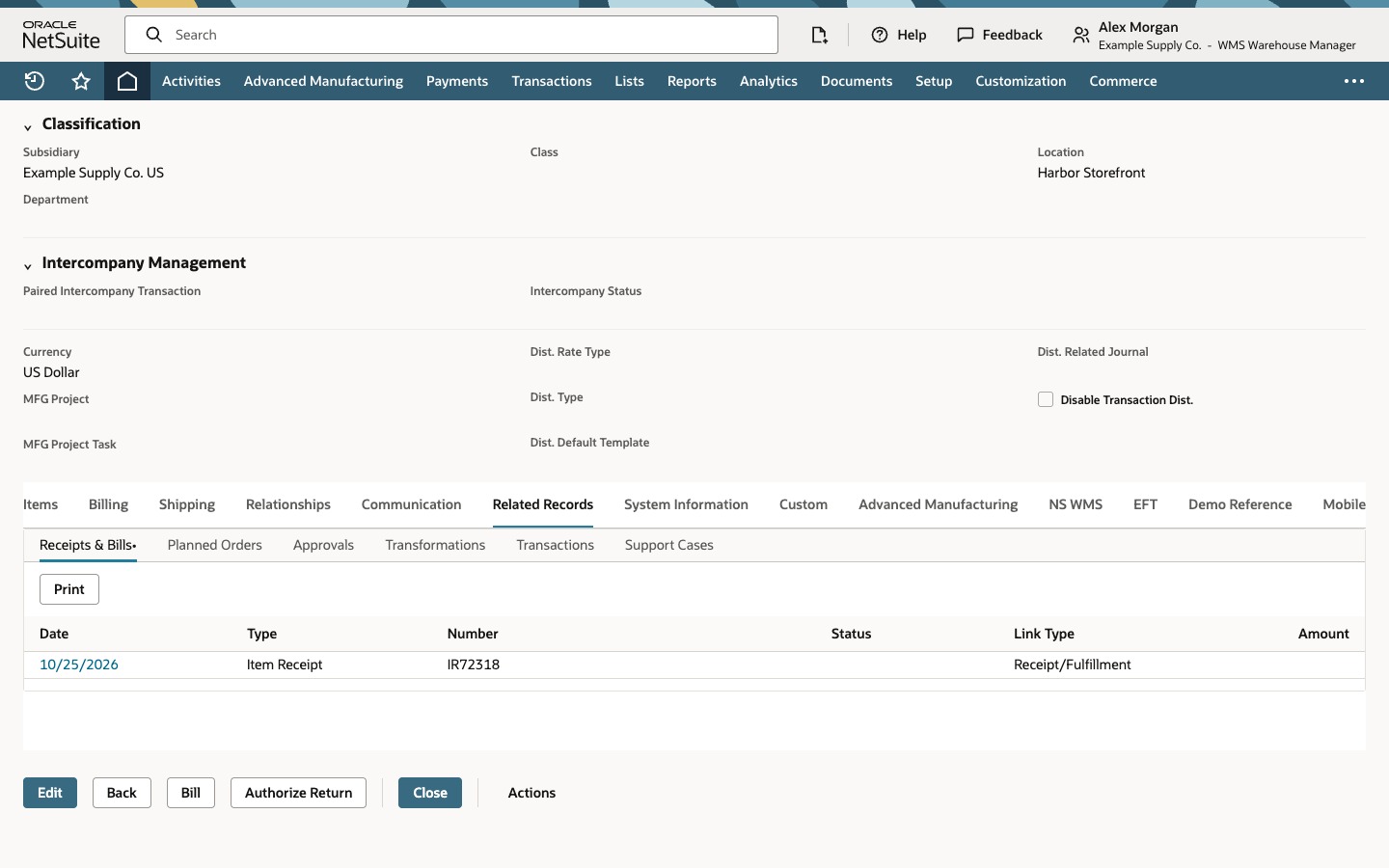
Reload PO72310. The status reads Pending Bill in this account (yours can read Pending Billing), and the buttons now offer Bill and Authorize Return instead of Receive. On the Items tab, Received reads 25 in this example, which is 5 cases times 5 Each. Your form can show the transaction unit instead, so compare Received with Quantity after the unit conversion. Open Related Records, then Receipts & Bills, to find the item receipt IR72318.
Check the result
- The unit list read Cases(5) after the scan, and the quantity you typed was 5.
- PO Received appeared, and PO72310 reads Pending Bill with Received 25.
- Receipts & Bills lists the item receipt IR72318.
Common questions
Why does the unit change to Cases after I scan the barcode?
The scanned value matches the Name of a WMS Item Alias record. The alias names the item and, in this example, a case unit as its Alias Unit, and the mobile page selected that unit in this example. A barcode or alias can supply unit information for some barcode formats and configurations, but not for every ordinary alias, so always verify the unit on Enter Quantity before you type.
Does 5 cases show as 5 or 25 on the purchase order?
In this example Received reads 25 Each. The case unit converts at five Each per case, so 5 cases represent 25 Each. The PO and the receipt can show the transaction unit or the converted quantity depending on the form, so compare Received with Quantity after the conversion rather than trusting the unit label alone.
What if the alias unit is not valid for the item?
The alias unit has to come from the item's units type. A unit from another type will not work, and NetSuite does not convert it silently. Fix the units type or the alias record before receiving. An inactive alias does not resolve when you scan it, and one barcode should belong to one item only.
What does Show Stock Locations do when Use Bins is off?
It lists the stock locations tied to the item at that location, so the receiver can say where the stock goes without picking a bin. They are item-level places to keep stock and do not replace bins or putaway. Setup decides whether the choice is required.
Does PO Received close or bill the purchase order?
No. It confirms that the receivable quantity was received and, with automatic posting, that the receipt posted. Billing is a separate vendor bill process, and whether the PO closes depends on the remaining quantities and your billing setup.