The quick answer
On Create a Wave, open the Template list and choose a saved template. It supplies the search criteria and default values it was saved with, here the order type, expected ship date and ship method. Select Search to get only the orders that match, select them, set Picking Type to Multiple Orders and save a Released wave. Then open Pick Tasks to verify the result. Compatible lines for the same item are usually combined into one task with the combined quantity, but bins, units and settings can split them.
The screenshots show sample data. Person and operating-company names are fictional. Use your own records and values when following the steps.
Before you start
The account needs NetSuite WMS, unfulfilled sales orders with eligible committed lines that are not already on an active wave, and a role that can create waves and read pick tasks. Approval, hold, ship-complete and location rules in your account decide which orders are eligible. This example uses a bin-enabled warehouse so that each task shows a recommended bin. It also needs a saved Wave Criteria template. The one here, WMS SO Wave : eCommerce UPS Ship Today, is an example: it is a saved search that someone in the account built, so a template with that name will not exist in yours until it is created.
The warehouse in this example, Riverside Warehouse, has eight open sales orders. Three are eCommerce orders that ship today by UPS Ground, and those are the ones the template should return. Which tasks and bins the release produces depends on your pick strategy, inventory, units and the Apply Pick Decomposition setting, so read the Pick Tasks tab of your own wave. The date filter is labeled Ship Date or Expected Ship Date depending on the template and release, and the template here uses the value today. If a template's date is relative, NetSuite evaluates it when the search runs, and a fixed date does not move on its own. The screenshots show 10/26/2026 for that reason only. A wave search can return up to 10,000 line items, so narrow the criteria if your queue is large. This walkthrough ends at the saved wave and does not show picking, packing or shipping.
01. Choose the template
Open Create a Wave from the WMS outbound area, your role's Transactions menu or global search, whichever your role offers. Confirm the page is Wave Criteria. Keep Location on Riverside Warehouse and Transaction Type on Sales Order. Open the Template list. It holds the default template and the account's saved ones. Choose WMS SO Wave : eCommerce UPS Ship Today.
The form changes to the filters that template makes available. Order Type has eCommerce Order Type selected, Expected Ship Date is on today with 10/26/2026, and Ship Method has UPS Ground selected. Nothing is typed. You can still change a filter for this search, and that does not change the saved template.
02. Search and check the orders
Select Search. A draft Wave opens with the orders and lines that match every filter. Check this list before you release anything, and review any partial-commitment warning before you select an order. Here the Orders tab lists SO-52101, SO-52102 and SO-52103. The FedEx orders, the wholesale orders and an eCommerce UPS order that ships tomorrow are not listed, and they stay in the queue for a later wave. If an order you expected is missing, check its order type, ship method, ship date, commitment, hold or approval status and whether it is already on an active wave. Nothing is released yet.
03. Select the orders and choose Multiple Orders
Select the check box in the Orders header to select all three orders. Selecting an order selects its lines. Summary shows Orders Selected 3, Line Items Selected 5 and Total Quantity (Base Unit) 25.
Open Line Items. BTL-500 is on all three orders, with CMP-120 on SO-52101 and TEA-040 on SO-52103. Open this tab when only some lines should go on the wave.
Parcel orders have few lines and small quantities, so set Picking Type to Multiple Orders. Compatible lines for the same item are grouped, so the picker can visit a shared item once and still sees each order's quantity. Single Order keeps each order line as its own task instead. Keep Status on Released. Review Apply Pick Decomposition and leave it as your account sets it, and then select Save.
04. Read the saved wave and its tasks
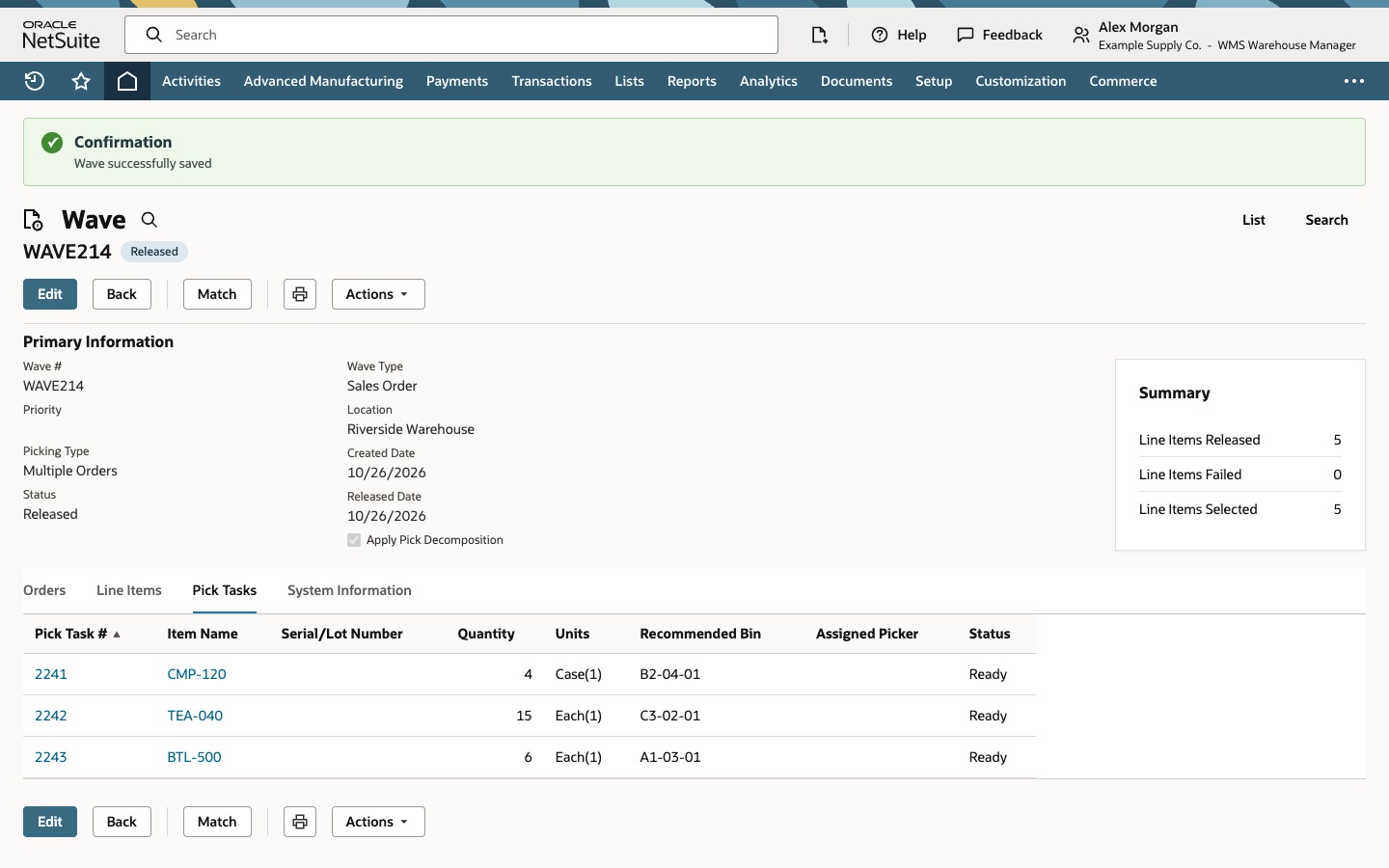
The page confirms the wave was saved. It is WAVE214, with Picking Type Multiple Orders and Status Released. Line Items Released is 5 and Line Items Failed is 0. Resolve any failures before you continue.
Open Pick Tasks. Three tasks are Ready: CMP-120 for 4 Case(1), TEA-040 for 15 Each(1) and BTL-500 for 6 Each(1). Each has a Recommended Bin. In this example the five lines produced three tasks, because the three compatible BTL-500 lines were combined into one 6-unit task. Another account or wave can split them. Summary counts lines, not tasks, so this tab is where you confirm the grouping.
Check the result
- The search returned only the eCommerce UPS orders due today.
- The saved wave is Multiple Orders and Released, with 5 line items released and 0 failed.
- Pick Tasks shows three Ready tasks, with BTL-500 as one task for 6 Each(1).
Common questions
What is a Wave Criteria template?
It is a custom search template for Create a Wave. It predefines criteria and default values, and it controls which filters the form offers. The default template provides the standard filters. Choosing a template does not necessarily fill in every field on the page.
How do I build a Wave Criteria template?
A template is a specialized transaction saved search. It must be public and available as a list view, it needs the Location and Type filters, its Criteria subtab holds the predefined values, its Available Filters subtab controls which filters the form shows, and its Results subtab sets the columns on the wave's Orders and Line Items tabs. Give it a unique saved-search ID that ends in _nswave. Use the New and Edit buttons next to Search, or the saved-search area if you have access. Your role needs permission to create saved searches and to create and view waves, and the template list shows the templates available to your role. This guide does not show building one.
Can I change the filters after choosing a template?
Yes. You can add or change criteria for the current search without changing the saved template.
Why is an order I expected missing from the results?
The order or line must pass every filter, and it must also be eligible for WMS release. Check location, transaction type, order type, ship date and ship method, then check that the order is unfulfilled, that its lines are committed, that it has not been held back by approval, hold or ship-complete rules, and that the line is not already in an active wave. A filter on lines can leave out an order even when another of its lines matches, and a partially committed order may need only its eligible lines selected. If the result is very large, narrow the filters.
What is the difference between Multiple Orders, Single Order and Bulk Picking?
Single Order keeps each order line as its own task. Multiple Orders groups compatible item demand across orders into fewer tasks and keeps each order's quantity visible to the picker. Bulk Picking combines the item quantity so the picker collects one consolidated amount, which is then distributed across the orders.