The quick answer
A saved Inventory Count is a transaction, so leaving the page does not lose it. Click List at the top right of any Inventory Count page, find your count in Inventory Counts, and click View on its row. If its Status is Open or Started, you can carry on with it. Edit opens the same count in edit mode.
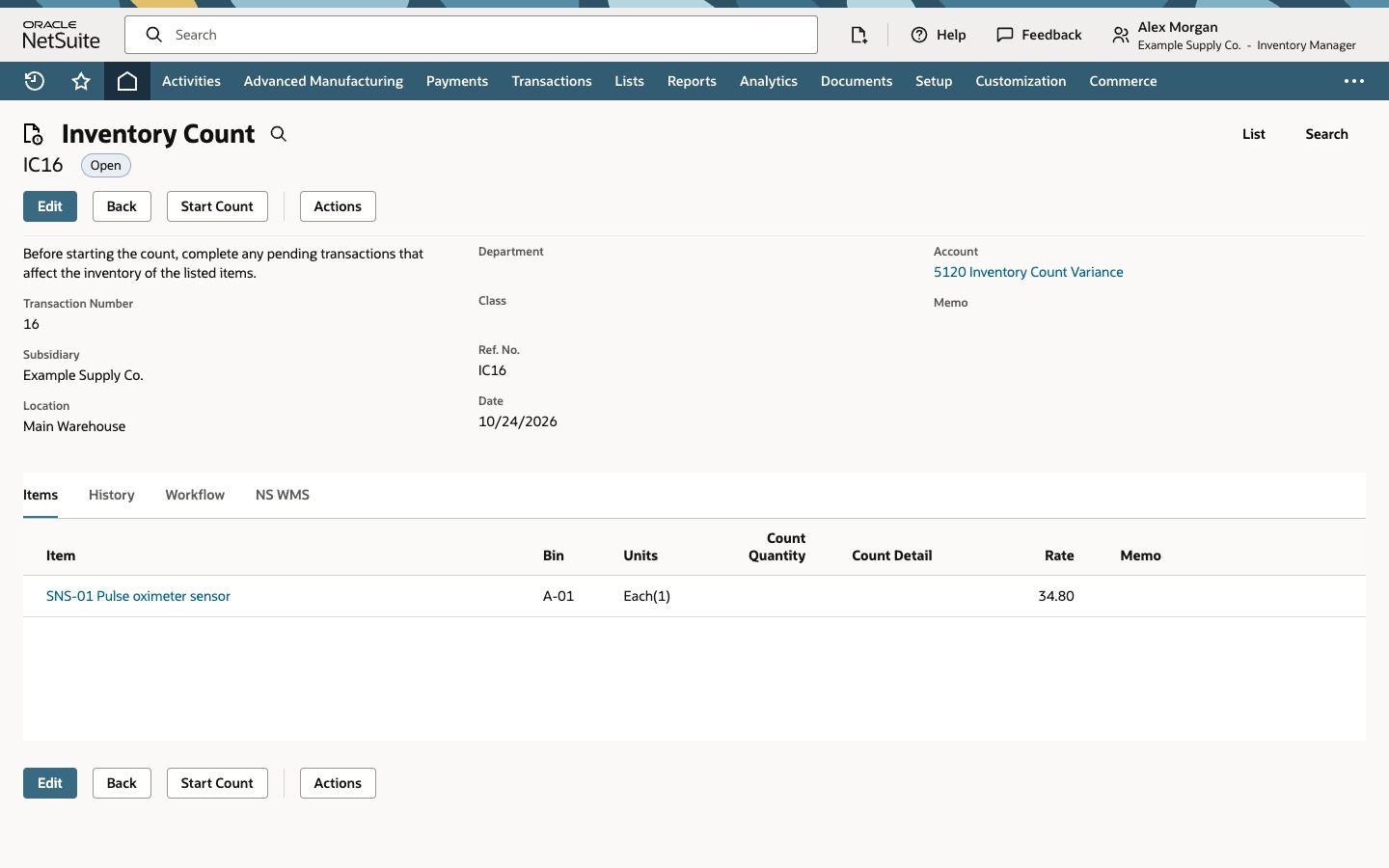
The example is Inventory Count IC16 for SNS-01 Pulse oximeter sensor at Main Warehouse, dated 10/24/2026. The screenshots use sample data, and the person and operating-company names are fictional.
Before you start
The Inventory Count feature has to be on, and your role needs permission to create, view, edit and start counts. The list shows only the counts your role and subsidiary access allow. The columns, the sort order and the number of counts depend on the view and the account. This guide follows a standard Inventory Count. Counts from WMS cycle count plans can use different menus and lists.
An Inventory Count has four statuses: Open, Started, Completed/Pending Approval and Approved. Saving a count leaves it Open with no snapshot. The snapshot is taken only when you click Start Count. Neither step freezes inventory, so receipts, fulfillments and transfers can still post while a count is Open or Started, and you have to account for them when you count and review. Reject returns a completed count to Started for a recount.
01. Create the count and save it
Go to Transactions > Inventory > Create Inventory Count. This page builds a count from the items that are due. A manual count from Enter Inventory Count lets you add items directly instead. Select the Subsidiary if your account asks for one, then the Location. Check the Count Start Date, Count End Date and Account. The account is the variance account that approval uses for the inventory adjustment, and your form may fill it in. The page lists the items due in the range. In the example the dates are 10/19/2026 to 10/25/2026 and four items are due. An item due outside the range, such as HSG-30, isn't listed.
Check the items you want to count and click Submit. In the example that is SNS-01. NetSuite confirms the save and assigns the count number. IC16 is Open, with Edit, Back and Start Count. Nothing has been counted, and no snapshot has been taken. Unsaved changes are lost if you leave, but a saved count stays.
02. Leave the count and open the Inventory Counts list
Now suppose the count is interrupted. You close the page, the tab closes, or someone else navigates away. The count is saved, so it isn't lost. To get back to it, click List at the top right of an Inventory Count page. The Enter Inventory Count page has the same link. The link and the menu path can differ with your role and form.
Inventory Counts lists the counts your role can see. Your view and filters can hide some. In the example, IC16 is Open, IC15 is Completed/Pending Approval, and IC14 and IC13 are Approved. Only a count that is Open or Started can be continued. A count that is Completed/Pending Approval is waiting for approval or rejection, and an Approved count is final.
03. Open the unfinished count
If you can't find the count, check the view and filters first. Click View on the IC16 row. Edit opens the same count directly in edit mode. IC16 opens again, still Open, for SNS-01 at Main Warehouse, with Edit, Back and Start Count. Check the status before you rely on the buttons. A Started count shows Complete Count instead of Start Count.
From here you choose how to carry on:
- Click Start Count to take the snapshot and change the status to Started. Before you do, complete the pending transactions that affect these items where you can, and account for anything that posts afterwards.
- Click Edit to change an Open count, such as the header or the item lines. After Start Count the item lines are fixed. You click Edit, enter the Count Quantity and any Count Detail your items need, and save.
- Then click Complete Count. That moves the count to Completed/Pending Approval and does not post anything. Approval is the step that can create inventory adjustments, and it can fail on a closed period or a missing permission.
- To abandon the count, open it in edit mode and check whether Actions > Delete is offered. Whether it is depends on your role, the form and the status. Don't assume a Started count can be deleted.
Common questions
Is an Inventory Count lost if I close the page before I finish?
No, if you saved or submitted it. That creates a transaction, and it stays in the Inventory Counts list, subject to your role and view, until it is approved or deleted. Changes you hadn't saved are lost.
Where do I find the list of Inventory Counts in NetSuite?
Use the List link at the top right of an Inventory Count page, including Enter Inventory Count. It opens Inventory Counts, the transaction list for the Inventory Count type. Your role, view and filters decide which counts, columns and order you see, and WMS cycle counts can use a different menu.
What do the Inventory Count statuses mean?
Open means saved with no snapshot. Started means Start Count was clicked and the snapshot was taken, so you can enter counted quantities but not add or remove item lines. Completed/Pending Approval means counting is finished and the count is waiting for approval or rejection. Reject returns it to Started for a recount. Approved means the count is final, and approval can create inventory adjustments for variances.
Does saving an Inventory Count take the snapshot?
No. The snapshot is taken when you click Start Count. Neither saving nor starting freezes inventory, so other transactions can post while a count is Open or Started. Account for them when you enter and review the count.
Can I delete an unfinished Inventory Count and start again?
Sometimes. Check the count in edit mode for Actions > Delete. Whether it is offered depends on your role, the form and the count's status, so don't assume a Started count can be deleted. Completed/Pending Approval and Approved counts aren't restartable drafts. Use Reject for a recount of a completed count.