The quick answer
Open Reports > Inventory/Items > Inventory Valuation > Detail and click Customize. In the Report Builder, search the fields for Transaction and add Transaction Bin Numbers and Transaction Serial/Lot Numbers. On the Filters tab add Inventory Item > Name equal to your item, enter a report name and click Save. The saved report lists each transaction with its bin and lot beside quantity and value.
The standard Inventory Valuation Detail report shows what changed an item's inventory value, but not where the stock was. When a value change needs explaining, such as a write-down on an inventory adjustment, the bin and lot are the missing pieces. The example below uses fictional company, person, item, bin and lot data.
Before you start
You need permission to run, customize and save reports; Administrator is not inherently required. Customizing a standard report saves a separate report under the name you choose. The standard report is not changed.
The bin and lot columns show values only for items and transactions that carry that detail. Bin management and numbered (lot or serial) inventory must be enabled in your account, and the item must be set up to use them. The two columns are separate display fields, so a bin-managed item that is not lot-numbered shows bins only. This example uses VLV-410 Control Valve, which uses both, and the MM/DD/YYYY date format. The values are simple average-costing arithmetic with no backdated transactions, landed costs or later costing adjustments. Valuation figures can change while costing is being recalculated, so confirm that processing is complete before you reconcile.
01. Run the standard report
Open Reports > Inventory/Items > Inventory Valuation and click Detail. The report lists the transactions that change each item's inventory value for the footer date range, here this month (10/01/2026 to 10/31/2026). Each item's heading row shows its quantity and value at the start of the range, and the Total row shows them at the end.
In the example, VLV-410 starts the month with 50 units worth 2,125.00 and ends it with 78 units worth 3,510.00. Inventory adjustment IA1208 took out 2 units worth 90.00. The columns end at Inv. Value, so the report cannot say which lot or bin that adjustment came from.
02. Add the bin and lot columns
Click Customize to open the Report Builder on the Edit Columns tab. Type Transaction in Search Fields and press Enter. The list shows the fields that match, including Transaction Bin Numbers and Transaction Serial/Lot Numbers.
Click each field once. It joins the Report Preview as a column after Inv. Value, and its Column Label starts as the field name. You can reorder or remove a column with Move Left, Move Right and Remove Column.
03. Filter to the item and save
Open the Filters tab. The Date, Location and Subsidiary Context filters are already listed. Expand Inventory Item in Add Fields, scroll to Name and click it. A new row opens with a value popup. Keep equal to, enter the item name VLV-410 and click Done.
Click Add to commit the row. The new filter reads Filter: equal to VLV-410. Enter Item Valuation With Bin and Lot in the Name field and click Save.
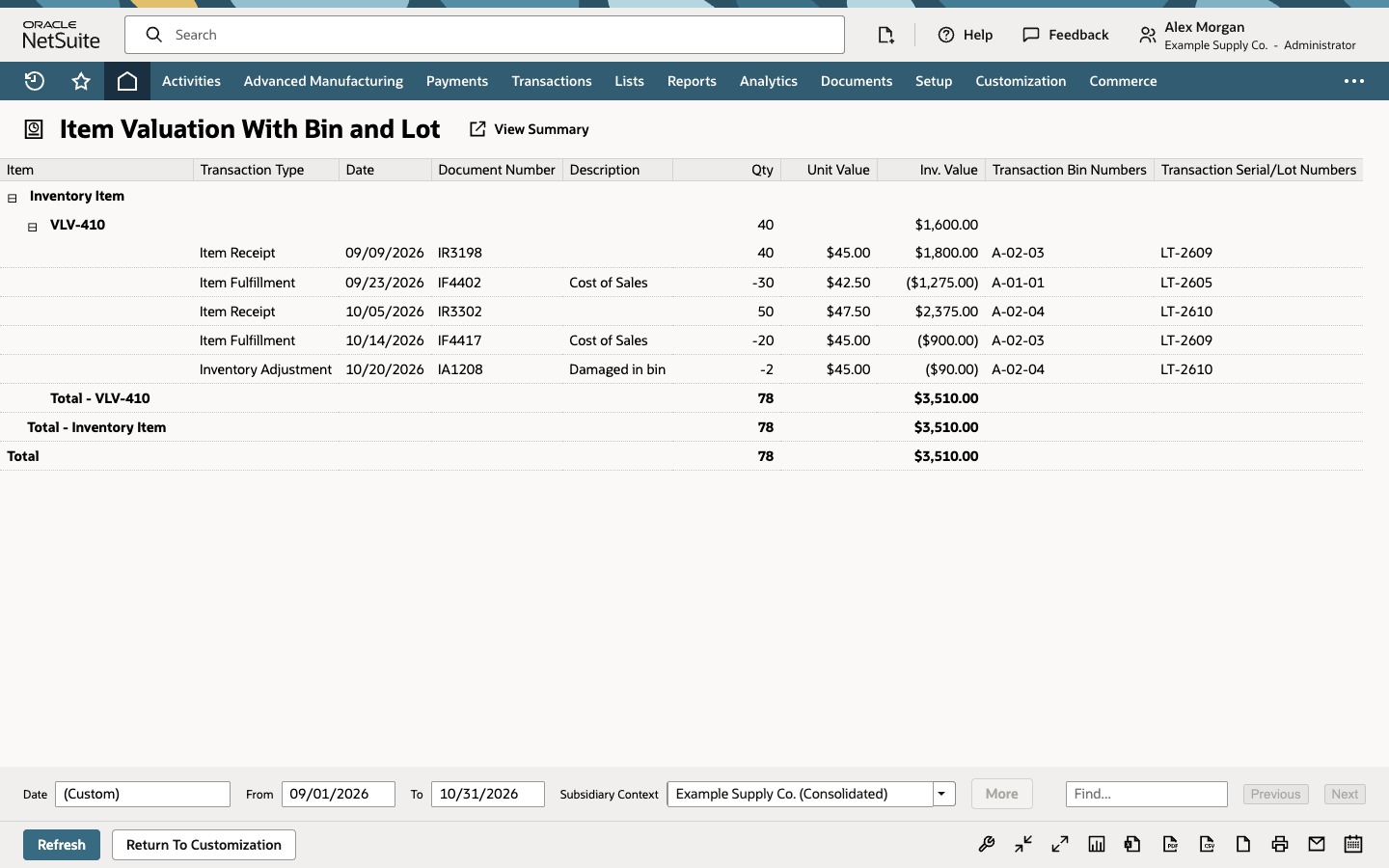
The saved report opens filtered to VLV-410, with the two new columns after Inv. Value. For this month it shows receipt IR3302 in lot LT-2610 and bin A-02-04, shipment IF4417 from lot LT-2609 and bin A-02-03, and adjustment IA1208 from lot LT-2610 and bin A-02-04. The report has its own name. Use Return To Customization to reopen the Report Builder.
04. Rerun for a wider range
The date range in the footer is separate from the saved layout. This example opened on this month, but check From, To and Subsidiary Context each time you run a saved report. Change From to 09/01/2026 and click Refresh. The September transactions appear above the October ones: receipt IR3198 into lot LT-2609 and bin A-02-03, and shipment IF4402 from lot LT-2605 and bin A-01-01. The item now opens at 40 units worth 1,600.00 and still ends at 78 units worth 3,510.00.
Read the IA1208 row: the 90.00 write-down came out of lot LT-2610 in bin A-02-04, the same lot and bin as the October receipt.
To confirm the result, check that the report lists only your item, that the two new columns follow Inv. Value and that the adjustment row shows the lot and bin you expect.
Common questions
Why are the bin or lot cells blank for some rows?
A cell is filled only when the transaction line carries inventory detail that the report exposes. An invoice, a costing adjustment or a revaluation may not carry the bin or lot, which can sit on a related receipt, fulfillment or adjustment. A blank cell is often expected, but it can also mean the inventory detail was never entered, so check the item setup, the transaction type and the location before you dismiss it.
Do I need Bin Management and Lot Tracking for these columns?
Bin management and numbered inventory are account features, and the item must be set up to use them. A column only shows values for items and transactions that carry that detail. The two columns are separate display fields: a bin-managed item that is not lot-numbered shows bins only, and the reverse.
What if one transaction line used several bins or lots?
The columns show an aggregated value for the line, so several bins or lots can appear together in one cell. Do not read a bin list and a lot list on the same line as pairs by position. The report does not give one valuation row per bin and lot combination. For quantities by bin or lot, use inventory detail analysis such as a saved search; value by bin or lot may need separate costing analysis.
Can I work out the value of each lot from this report?
Not reliably. Unit Value and Inv. Value are costing results for the transaction line. Do not multiply a lot's quantity by the line's Unit Value unless you have validated how cost is allocated for that item and costing method.
Does saving change the standard Inventory Valuation Detail report?
No. Save stores your layout under the name you enter and runs it. The standard report stays as it was. Who can see, edit or share the saved report depends on its audience and permissions.