The quick answer
Open a new WMS Wave Release Schedule, choose a wave template, the warehouse location, Single-Order Picking and a Released status, then set minimum and maximum wave order limits, Release Day, Release Frequency and a Run Time Start and End. Save it. The saved schedule asks WMS to build waves on its release days, and its Release Status tab is where you check what each scheduled run did.
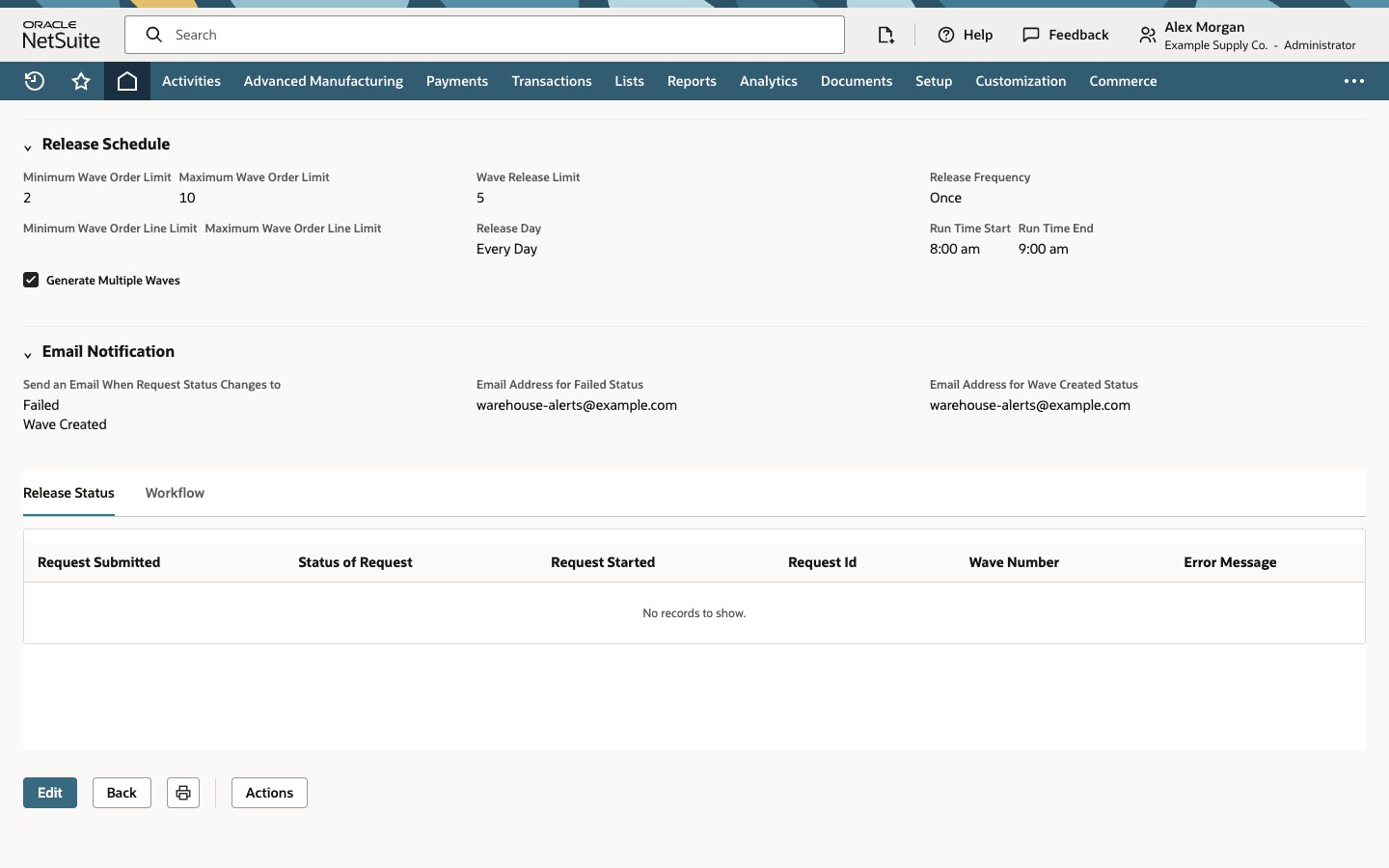
This example schedules sales order waves for Riverside Warehouse. Each wave takes 2 to 10 orders, one run can create up to 5 waves, and the release runs every day between 8:00 am and 9:00 am. Failed requests and created waves both send email. This illustrated walkthrough uses synthetic example data. Person and operating-company names are fictional. Use your own location, template and addresses.
Before you start
You need NetSuite WMS enabled, a location set up for it, a wave template your role can use, and access to the WMS Wave Release Schedule record. The usual role is WMS Warehouse Manager, or another role with equivalent permissions. The example uses Administrator. Menu paths, labels, the template list and the form layout depend on your account, role and release.
The schedule builds waves only from orders that are eligible for WMS release: supported, unfulfilled, committed for the location and not already in an active wave. Holds, approval routing and ship-complete rules can also exclude an order. Saving a schedule does not change any order. This walkthrough ends at the saved schedule. It does not show the next morning's run, and a run creates no wave when it finds no eligible orders.
01 · Open a new schedule
Click the global search box and type wave schedule. Under Global Search Results, choose New WMS Wave Release Schedule. A new form opens with Template empty. The WMS outbound area of the WMS Warehouse Manager center is the other usual route, and the list page has a New WMS Wave Release Schedule button. Confirm the page title reads WMS Wave Release Schedule before you continue.
02 · Choose the template, location and status
Set Template to WMS SO Wave : Template By Order Type/Exp Date/Ship Via. The template supplies the wave criteria and its starting values, so Transaction Type fills with Sales Order. You cannot change the template after you save the schedule.
Set Location to Riverside Warehouse and Picking Type to Single-Order Picking. Some releases label this Single Order. Leave Wave Priority empty. Set STATUS to Released.
Released creates the pick tasks and makes them available to warehouse staff. Choose Pending Release instead if a manager should review, assign and release each wave first. Pending Release still creates pick tasks.
03 · Set the wave limits
In Release Schedule, enter 2 in Minimum Wave Order Limit and 10 in Maximum Wave Order Limit. The two Wave Order Line Limit fields turn grey. Use either order limits or line limits for a schedule, not both.
With these values, a run that finds only one eligible order does not create a wave. With 11 eligible orders, a wave holds up to 10, and the remaining order waits for a later release.
Check Generate Multiple Waves. Wave Release Limit becomes available. Enter 5. One scheduled run can then create up to 5 waves instead of stopping at the first. The field accepts 1 through 500, and the limit applies to each run, not to the schedule's lifetime.
04 · Set the morning window
In Release Day, select Every Day. Set Release Frequency to Once. Enter 8:00 am in Run Time Start and 9:00 am in Run Time End.
Once is meant to make one release attempt inside that window on each selected day. The other frequencies in this account, from Every 15 minutes up to Every twelve hours, repeat within the window; the list can differ in your release. An attempt submits wave-generation work as a background job. It does not guarantee a wave, and the job can start or finish at a different time than the window suggests. The window follows the account's time zone setting, not the user's.
05 · Choose email notifications
Under Email Notification, select Failed and Wave Created in Send an Email When Request Status Changes to. In NetSuite's list, hold Command on a Mac or Ctrl on Windows to select both. Enter the address in Email Address for Failed Status and in Email Address for Wave Created Status. The two addresses can differ, and several addresses are normally separated by semicolons. The example uses the placeholder warehouse-alerts@example.com for both.
These emails report on the wave-generation request. They are not a general notification for picking, packing or shipping.
06 · Save and check the schedule
Click Save. The saved record shows the template, Riverside Warehouse, Sales Order, Single-Order Picking and Released. Check order limits 2 and 10, Wave Release Limit 5, Every Day, Once, 8:00 am and 9:00 am, and both email settings. Leave Inactive unchecked, because an inactive schedule does not run.
Open the Release Status tab. In this account its columns are Request Submitted, Status of Request, Request Started, Request Id, Wave Number and Error Message; names and details can vary by release. It has no rows yet because nothing has run. After the first scheduled windows, come back here to confirm the requests ran, which waves they created and whether any failed, then open a generated wave and its pick tasks.
Common questions
What do the minimum and maximum wave order limits do?
They size each wave. A run that finds fewer eligible orders than the minimum does not create a wave. A wave never holds more orders than the maximum, and the rest wait for a later release.
Why are the order line limit fields grey?
Order limits and order line limits are mutually exclusive. Once you enter an order limit, the line limit fields turn off. Clear the order limits to size waves by order lines instead.
What does Wave Release Limit do?
It caps how many waves one scheduled run creates when Generate Multiple Waves is checked, with a valid range of 1 through 500. The field is unavailable until you check that box.
Should a scheduled wave be Released or Pending Release?
Use Released when pickers should receive work automatically. Use Pending Release when a manager should review or assign the pick tasks first. Both statuses create pick tasks. Released does not mean the goods are picked or shipped.
Does an inactive schedule run?
No. Check the Inactive box first when a schedule produces nothing.