The quick answer
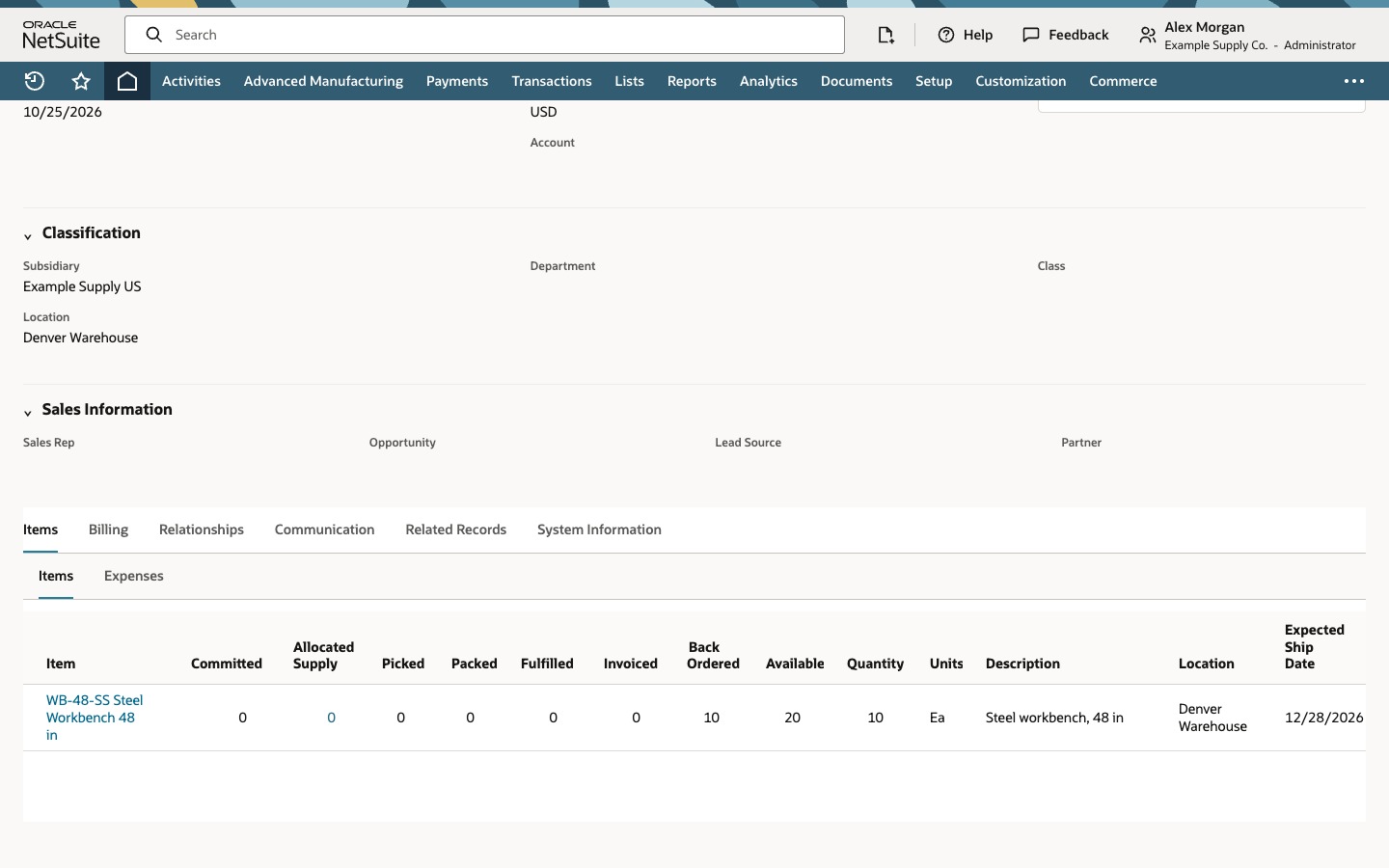
Edit the sales order, click the line, and change Allocation Strategy to a strategy whose Allocation Period has Limit Inventory Allocation Period Before Supply Required By Date checked, then click OK and Save. In this example the strategy allows supply only from 30 days before the 12/28/2026 date, so the 20 workbenches on hand today are out of its window. The saved line shows Committed 0, Allocated Supply 0 and Back Ordered 10, and its Allocated Supply popup is empty. Expect an Allocation Alert too: the line is no longer scheduled to be fulfilled by its date until allocation runs again.
The screenshots show sample data. Person, company, customer and item values are fictional.
Inline images show the field or column used in each step. Select Enlarge to see the complete recorded screen and its surrounding context.
Before you start
Example Supply Co. has 20 WB-48-SS Steel Workbenches at Denver Warehouse. Sales order SO4716 for Westfield Hardware is for 10 of them, wanted on 12/28/2026. The order is dated today, 10/25/2026, and its line uses the strategy ASAA-Available-Reserved, so it already holds 10 workbenches.
The account needs the Supply Allocation feature, and the strategy you switch to has to exist already under Setup > Order Management > Order Allocation Strategies. Real-time allocation (Perform Supply Allocation After Transaction Entry, Update or Delete on the Supply Allocation setup) makes the save recalculate the line. Without it the line can keep its old allocation until an on-demand or scheduled allocation runs. Your role needs permission to edit sales orders and view strategies.
Strategy names, columns and the exact figures depend on your account, role, release and competing demand. The results below are for this example: no purchase order, transfer order, work order or inbound shipment falls inside the strategy's window, and the line has no firm allocation or Commitment Confirmed.
01. Read what the line holds
Open SO4716 from Recent Records. On the Items subtab the workbench line shows Committed 10, Allocated Supply 10, Back Ordered 0 and Available 20. The order is two months out and already holds half the stock.
Scroll the sublist to the right. Supply Required By Date is 12/28/2026 and Allocation Strategy is ASAA-Available-Reserved, a strategy with no Allocation Period, so it takes available stock as soon as it can.
Click the Allocated Supply value. The popup lists one row of type Inventory for Commitment and Allocation from Denver Warehouse, with Supply Quantity 20 and Allocated 10. Close it.
02. Check the strategy's Allocation Period
Go to Setup > Order Management > Order Allocation Strategies and click View on ACAP-30-Day-Window-Reserved. Under Allocation Period, Limit Inventory Allocation Period Before Supply Required By Date is checked at 30 Days, and so is the After limit. The before limit applies to current and future inventory and counts days before the line's Supply Required By Date, not before today. The after limit applies to future inventory only.
For a line due 12/28/2026 that means supply available from 11/28/2026. Stock on hand today, 10/25/2026, is available earlier than that, so this strategy leaves it out. The method is Allocate As Close As Possible To Supply Required By Date, with Available Quantity and Reserved Allocation.
03. Switch the line's strategy and save
Open SO4716 again, click Edit, then click the workbench line to open it. Scroll right to Allocation Strategy, choose ACAP-30-Day-Window-Reserved in place of ASAA-Available-Reserved and click OK. Then click Save. The change takes effect when the order is saved and allocation runs.
04. Confirm the line holds no stock
The saved order opens with an Allocation Alert: one or more order lines are not scheduled to be fulfilled by the Supply Required By Date. It sits above the Confirmation and is the expected result here. The line has no supply scheduled for 12/28/2026 yet.
On the Items subtab the line now shows Committed 0, Allocated Supply 0 and Back Ordered 10. Available stays 20, because it counts the stock at the location that other lines are not holding.
Click the Allocated Supply value. The popup shows its column headers and no rows. The order is not cancelled and no stock is lost: the 20 workbenches are free for orders that ship sooner.
The order now has no commitment, so do not promise a ship date on stock it no longer holds. As 12/28/2026 approaches, the stock comes back inside the 30-day window, but only an allocation calculation allocates it: real-time on a change to the order, a scheduled or on-demand run, or a manual reallocation. Review the order before the window opens and confirm it is allocated in time. Expected Ship Date and Days Late are recalculated from the allocation result and depend on your item's ATP lead time, so read them for your own data.
Common questions
How do I stop a future-dated sales order from holding stock in NetSuite?
Change the line's Allocation Strategy to one with Limit Inventory Allocation Period Before Supply Required By Date checked, then save the order. Supply that is available earlier than that many days before the line's Supply Required By Date is left out, so stock on hand today is not committed to a line that is months away.
What do the Allocation Period limits on an Order Allocation Strategy do?
The before limit applies to current and future inventory and ignores supply available more than that many days before the Supply Required By Date. The after limit applies to future inventory only and ignores supply that arrives more than that many days after the date. A limit that is not checked does not apply, and with neither checked the strategy considers all available supply. The limits do not change the date and do not create supply.
Why is the Allocated Supply popup empty on my sales order line?
Usually because the latest allocation found no eligible supply under the line's strategy. In this example the stock is outside the strategy's 30-day window. Other causes are Future Inventory being off or the order type not selected, supply at another location or in an unavailable inventory status, or allocation not having recalculated yet.
Does this cancel the sales order or lose the stock?
No. The order stays open with the quantity back ordered, and the stock stays on hand. It is released from this line, so other orders can commit it, though it is not assigned to any particular order until allocation runs for them.
What is the difference between changing the Supply Required By Date and changing the Allocation Strategy?
The Supply Required By Date is when the line needs supply, and changing it changes the date the strategy evaluates. The Allocation Strategy is the rulebook: which supply types it may use, how far from the date it may look, whether it prefers the earliest or the closest supply, and whether the result is Reserved or Firm. Use the strategy change when the date is right and the rule is the problem.